Appointments REST API
The REST API is a powerful part of WooCommerce Appointments which lets you read and write appointments, slots, availability rules, staff, and more. Version 2 introduces significant performance improvements, indexing integration, and real-time capabilities.
API Versions
Version 2 (Recommended)
- Performance: Optimized queries with indexing integration
- Real-time: SSE endpoint for live updates
- Efficiency: Reduced N+1 queries and optimized data loading
- Compatibility: Full backward compatibility with v1 endpoints
Version 1 (Legacy)
- Stable: Maintained for existing integrations
- Complete: Full CRUD operations supported
- Reliable: Proven in production environments
Requirements
In order to access the REST API, you must have your WordPress permalinks configured to something other than "Plain". Go to Settings → Permalinks and choose an option.

Performance Optimizations (v2)
Indexing Integration
- Availability Index: Uses precomputed availability data when within horizon
- Query Optimization: Composite indexes on postmeta for faster lookups
- Reduced Queries: Eliminates N+1 problems with strategic JOINs and EXISTS subqueries
- Caching: Intelligent caching for frequently accessed data
Query Improvements
- INNER JOINs: Used when meta values are required (WHERE/ORDER BY)
- EXISTS Subqueries: Faster filtering when meta not used in ORDER BY
- UNION Queries: Better index usage for OR conditions in get_qty_input_max()
- Composite Indexes: (post_id, meta_key) and availability_cache indexes
API Reference
- Authentication & Permissions
- Appointments
- Slots
- Availabilities
- Index Endpoint
- Staff
- Products
- SSE (Realtime)
- Error Handling
- Code Examples
Authentication
Authentication is usually the part most developers get stuck on, so this guide will cover a quick way to test that your API is working.
We recommend using Postman or Insomnia to test API requests. Both are free and help visualize what the API offers.
We're covering HTTPS authentication here since it's the simplest and most secure method. You should avoid HTTP if possible.
Generate Keys
To start using the REST API, you first need to generate API keys.
- Go to WooCommerce → Settings → Advanced
- Go to the REST API tab and click Add key

- Give the key a description for your own reference
- Choose a user with access to appointments (Administrator or Shop Manager)
- Give the key Read/Write permissions
- Click Generate API key
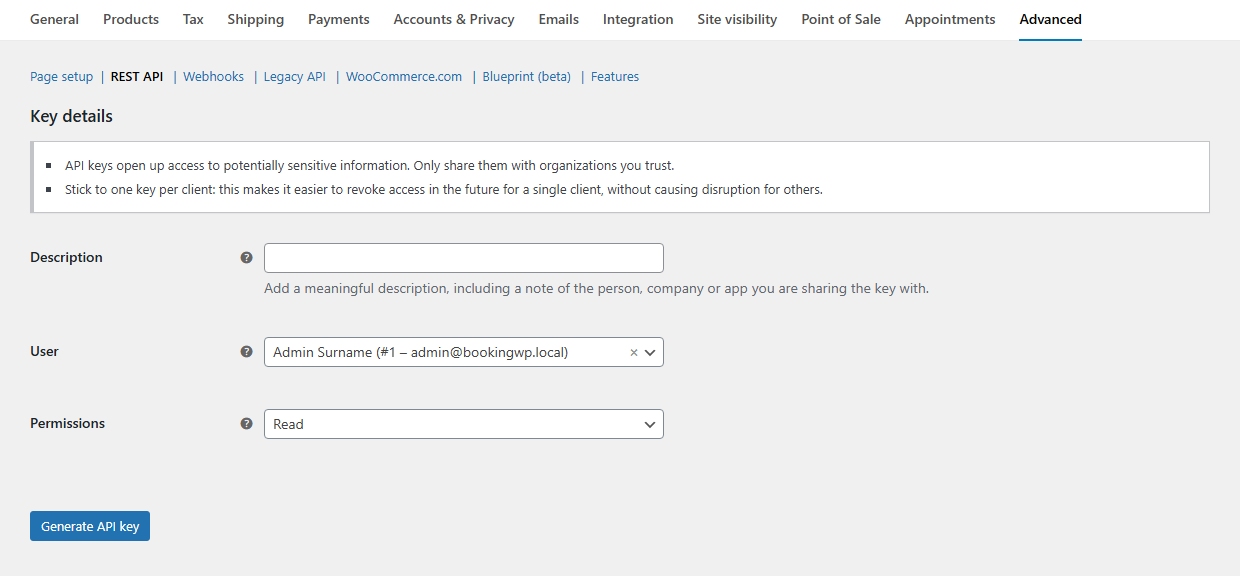
- Your keys will be shown - do not close this tab yet, the secret will be hidden if you try to view the key again

Make a Basic Request
The request URL we'll test is /wp-json/wc-appointments/v2/appointments. On your site the full URL will look like:
https://your-site.com/wp-json/wc-appointments/v2/appointments
Using Postman
- Set the request type to GET
- Enter your request URL
- Go to the Authorization tab
- Choose Basic Auth
- Enter your Consumer Key as username
- Enter your Consumer Secret as password
- Click Send
Using cURL
curl -u consumer_key:consumer_secret \
  "https://your-site.com/wp-json/wc-appointments/v2/appointments"
You should see a JSON response with your appointments:
[
  {
    "id": 123,
    "status": "confirmed",
    "product_id": 456,
    "start": "2025-12-25T10:00:00",
    "end": "2025-12-25T11:00:00",
    "customer_id": 1
  }
]
That's it! The API is working.
Base URL & Namespaces
- v1:
/wp-json/wc-appointments/v1/ - v2:
/wp-json/wc-appointments/v2/
Use v2 for read-heavy workloads, calendar views, and improved performance.
Endpoints Overview
| Endpoint | Methods | Description |
|---|---|---|
/appointments | GET, POST, PATCH, DELETE | Appointment CRUD |
/slots | GET | Available appointment slots |
/availabilities | GET, POST, PATCH, DELETE | Availability rules |
/index | GET | Precomputed availability (v2 only) |
/staff | GET | Staff members |
/products | GET | Appointable products |
/sse | GET | Realtime updates (v2 only) |
Common Connection Issues
401 Unauthorized
Your API keys or signature is wrong. Ensure that:
- The user you generated API keys for has access to appointments
- The username when authenticating is your Consumer Key
- The password when authenticating is your Consumer Secret
- Make a new set of keys to be sure
Consumer Key is Missing
Occasionally servers may not parse the Authorization header correctly. In this case, provide the consumer key/secret as query string parameters:
https://your-site.com/wp-json/wc-appointments/v2/appointments?consumer_key=ck_xxx&consumer_secret=cs_xxx
SSL Certificate Issues
If you're testing on localhost with a self-signed certificate, disable SSL verification in Postman/Insomnia settings.
Next Steps
- Learn about Authentication methods
- Explore Appointments endpoints
- Check Slots endpoint for availability
- See Code Examples