Availability Rules
Default: nothing is bookable until a Yes rule opens time.
Rules stack — last match wins (not “AND”). Lower priority number wins · staff beats product beats global · lower row in the list wins ties.
What you need: Appointable product · Site timezone

Mon–Fri 9–5 — read this first
Most setup mistakes happen here.
✅ Works — Mon–Fri 9–5, weekends closed
Option A — 2 rules
| # | Range type | From | To | Appointable |
|---|---|---|---|---|
| 1 | Recurring time (all week) | 09:00 | 17:00 | Yes |
| 2 | Range of days | Saturday | Sunday | No |
Rule 2 must sit below rule 1 in the list.
You get: ✅ Mon–Fri 9–5 · Sat–Sun closed
Option B — 5 rules
Add five separate rules — one per weekday:
| # | Range type | From | To | Appointable |
|---|---|---|---|---|
| 1 | Monday | 09:00 | 17:00 | Yes |
| 2 | Tuesday | 09:00 | 17:00 | Yes |
| 3 | Wednesday | 09:00 | 17:00 | Yes |
| 4 | Thursday | 09:00 | 17:00 | Yes |
| 5 | Friday | 09:00 | 17:00 | Yes |
Do not add Saturday or Sunday rules — weekends stay closed by default.
You get: ✅ Mon–Fri 9–5 · Sat–Sun closed
❌ Does not work — looks like 9–5, but isn’t
| # | Range type | From | To | Appointable |
|---|---|---|---|---|
| 1 | Range of days | Monday | Friday | Yes |
| 2 | Recurring time (all week) | 09:00 | 17:00 | Yes |
You get: ❌ Mon–Fri 24/7 · Sat–Sun 9–5 only
Why: Range of days → Yes opens the whole day (midnight–midnight), not office hours. The time rule does not trim weekdays — it only adds 9–5 on every day including weekends.
Range of days = full day on those weekdays. Time rules = hours only. For Mon–Fri 9–5, use Option A or B above — not range-of-days Yes on Mon–Fri.
How rules combine
| When rules overlap | Winner |
|---|---|
| Different priority | Lower number |
| Same priority | Staff > product > global |
| Still tied | Rule lower in the list |
One minute = one winner (last painted). Rules do not intersect like “AND.”
Where rules live
| Scope | Where | Applies to |
|---|---|---|
| Global | WooCommerce → Settings → Appointments → Global Availability | All products |
| Product | Product → Availability tab | That product |
| Staff | Users → staff → Availability | That staff member |
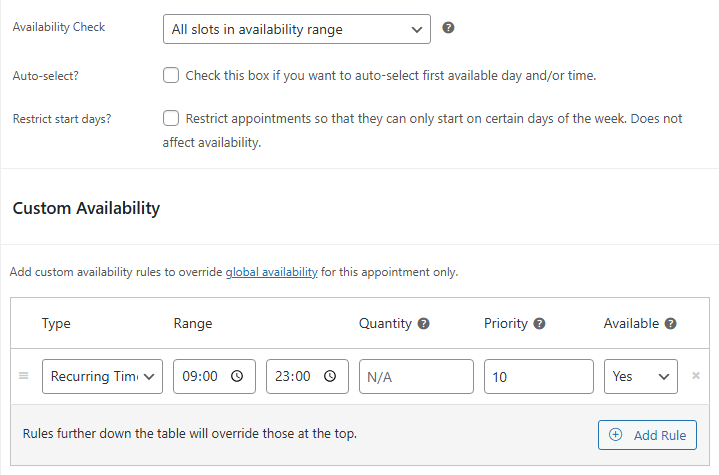
Rule fields

| Field | Purpose |
|---|---|
| Range type | What gets opened or blocked — types below |
| From / To | Start and end |
| Appointable | Yes = open · No = block |
| Priority | Lower number wins (manual 10, Google sync 5) |
| Qty | Optional seat limit for matching slots |
| Title | Admin label |
Range types — what each rule paints
| Type | Paints |
|---|---|
| Range of days | Full day on the weekdays you pick (not “hours only”) |
| Date range | Full day on those dates |
| Recurring time (all week) | Same hours every day |
| Monday … Sunday | Hours on that weekday only |
| Recurring time (date range) | Hours on each day in a date span |
More examples
Lunch break (12–1) — add to Option A
| # | Range type | From | To | Appointable | Priority |
|---|---|---|---|---|---|
| 3 | Recurring time (all week) | 12:00 | 13:00 | No | 9 |
Priority 9 beats the open rules (10) for that hour.
Christmas closed
| # | Range type | From | To | Appointable | Priority |
|---|---|---|---|---|---|
| 1 | Date range | 2026-12-25 | 2026-12-25 | No | 1 |
Staff leaves at 1 PM
Product uses Option A above. On the staff profile, add:
| # | Range type | From | To | Appointable | Priority |
|---|---|---|---|---|---|
| 1 | Recurring time (all week) | 13:00 | 17:00 | No | 9 |
✅ Works: a No rule closes their afternoon when that staff member is selected.
❌ Does not work: staff Yes 09:00–13:00 alone — that does not remove product hours after 1 PM. Use a No rule to block unwanted hours.
Staff vs auto-assign
| Booking mode | Staff rules |
|---|---|
| Customer picks a staff member | Can open or close times on top of product rules |
| Auto-assign (no pick) | Staff Yes can add time · staff No cannot remove product Yes |
Google synced rules
Global Availability → Synced rules tab · read-only from Google (two-way sync). Edit in Google Calendar, then re-sync.
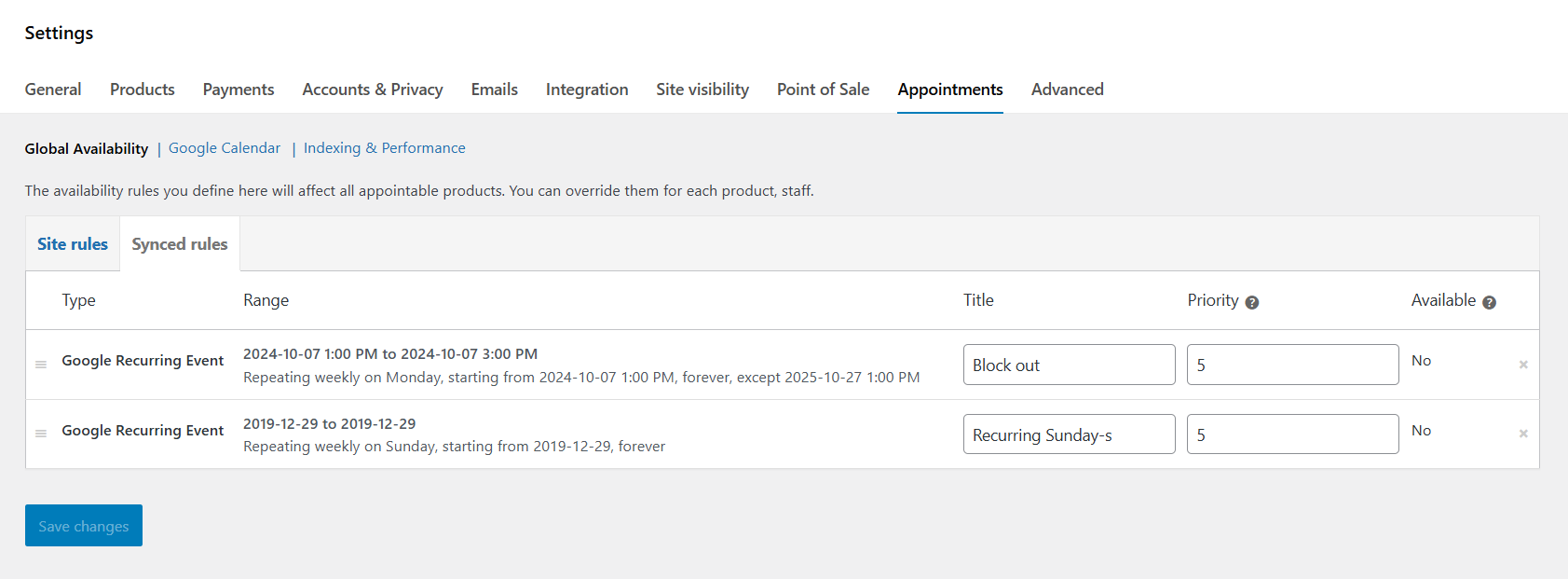
| Blocks slots | Busy events only — Free events are ignored |
| Default priority | 5 (manual rules 10) |
Google Calendar sync · Backup before re-sync
Checklist before you go live
- At least one Yes rule exists
- Mon–Fri hours use time rules (Option A or B) — not range of days Yes on Mon–Fri alone
- Test on the storefront — Customer booking
Related
- Appointable product
- Google Calendar sync
- Indexing — if slots are slow after rules are correct