Indexing & Performance
Indexed availability pre-calculates slots in a cache table so booking forms stay fast on busy stores (5.0+).
Before you begin
How it works
Without indexing, each slot check runs full availability logic. With Use indexed availability enabled, lookups use the wc_appointments_availability cache, expanded automatically within your caching horizon.
When to enable
- ✅ High booking volume or complex rules
- ✅ Many staff or long booking windows
- ✅ Slow storefront slot loading
Important
- Run Manual re-index after bulk rule changes or if slots look stale
- Re-index is resource-heavy on very large stores — use low-traffic windows
- Horizon 3–6 months is a common default (range 1–12)
Setup: Enable → Re-index when needed · Also under Global settings
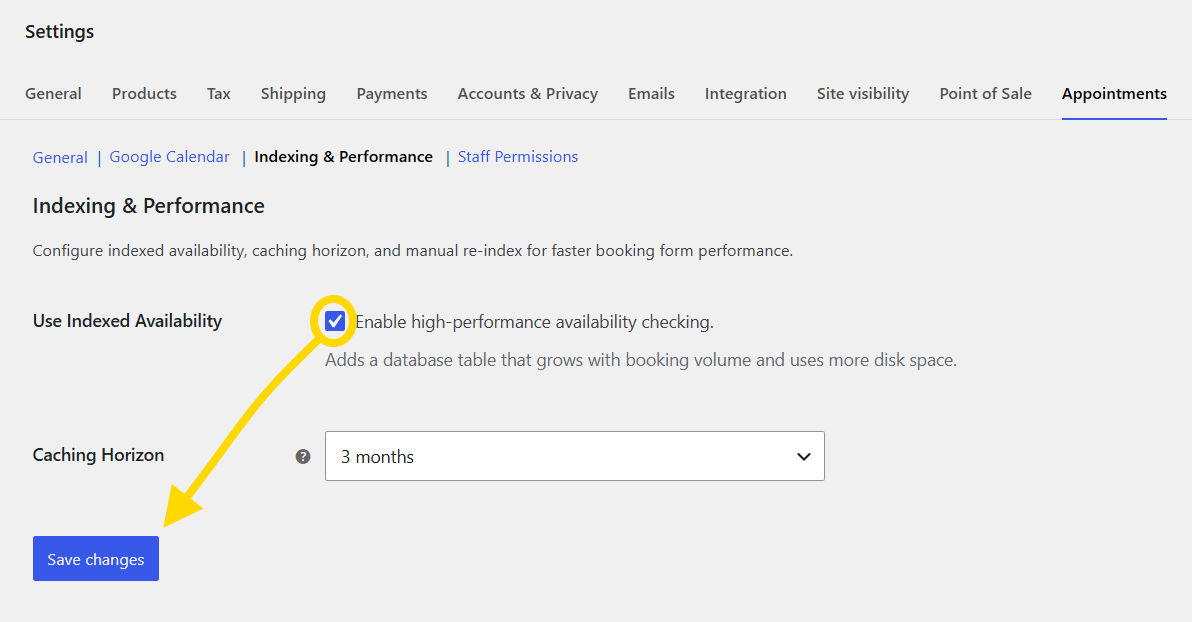
Enable indexed availability
- WooCommerce → Settings → Appointments → Indexing & Performance
- Check Use indexed availability
- Set Caching horizon (months to pre-cache)
- Save changes
Manual re-index
Run when:
- You bulk-imported or changed availability rules
- Slots disagree with rules after edits
- You just enabled indexing on an existing store
- Confirm indexing is enabled and saved
- Open Manual re-index → Re-index Now
- Wait for completion (Stop re-index only if you must halt a run)
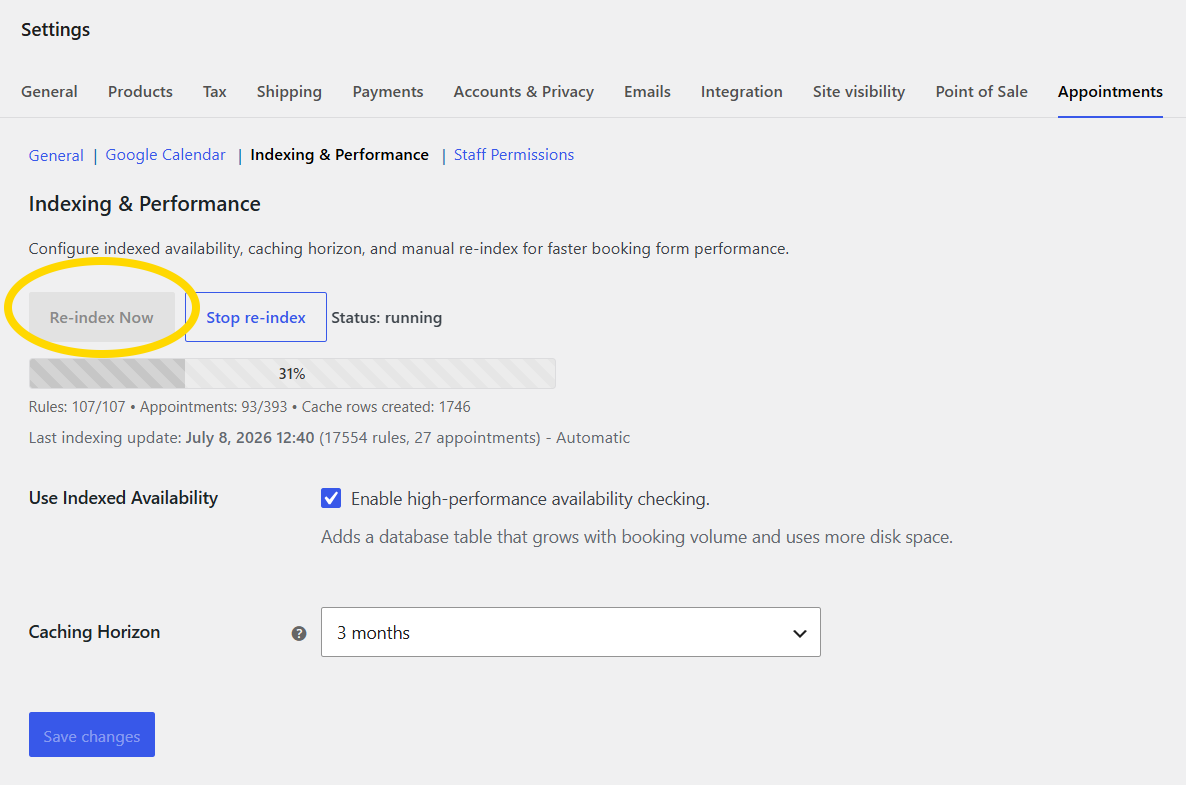
During re-index the storefront stays correct but may respond slower until the run finishes.
warning
Thousands of products or very long horizons: schedule re-index during quiet hours.
Performance notes
- Cache table size grows with rules, staff, and horizon length
- Indexed lookups can be significantly faster for storefront search and the admin calendar
- When the index is healthy, sold-out checks can use the appointment cache for faster occupancy lookups; the plugin falls back to live data during backfill so slots stay accurate
Related
- Availability rules — fix rules before blaming the index
- Known issues — Database & performance