Global Settings
How it works
WooCommerce → Settings → Appointments holds site-wide defaults: global availability, Google Calendar, indexing, and links to staff permissions.
Do this before creating products
- Set WordPress → Settings → General timezone, date format, and week start — Timezones
- Skipping timezone setup affects every slot, email, and calendar view
Open WooCommerce → Settings → Appointments to configure defaults products can override.

Staff permissions
Staff access is configured separately at Appointments → Settings → Staff Permissions (not on this screen).
- Global permission defaults apply to all Shop staff
- Per-staff overrides are available on each staff profile
See Roles & capabilities for the full matrix.
Date and time
Set these in WordPress → Settings → General (not under Appointments):

| Setting | Purpose |
|---|---|
| Timezone | Store timezone for storage and admin views |
| Date / time format | Display across the site |
| Week starts on | Calendar week layout |
Customer timezone display is site-wide when enabled — the per-product Customer timezones checkbox was removed in 5.3.11. See Timezones.
Global availability
Default rules for all appointable products — overridable per product or staff. See Availability rules for range types, priority, and examples.
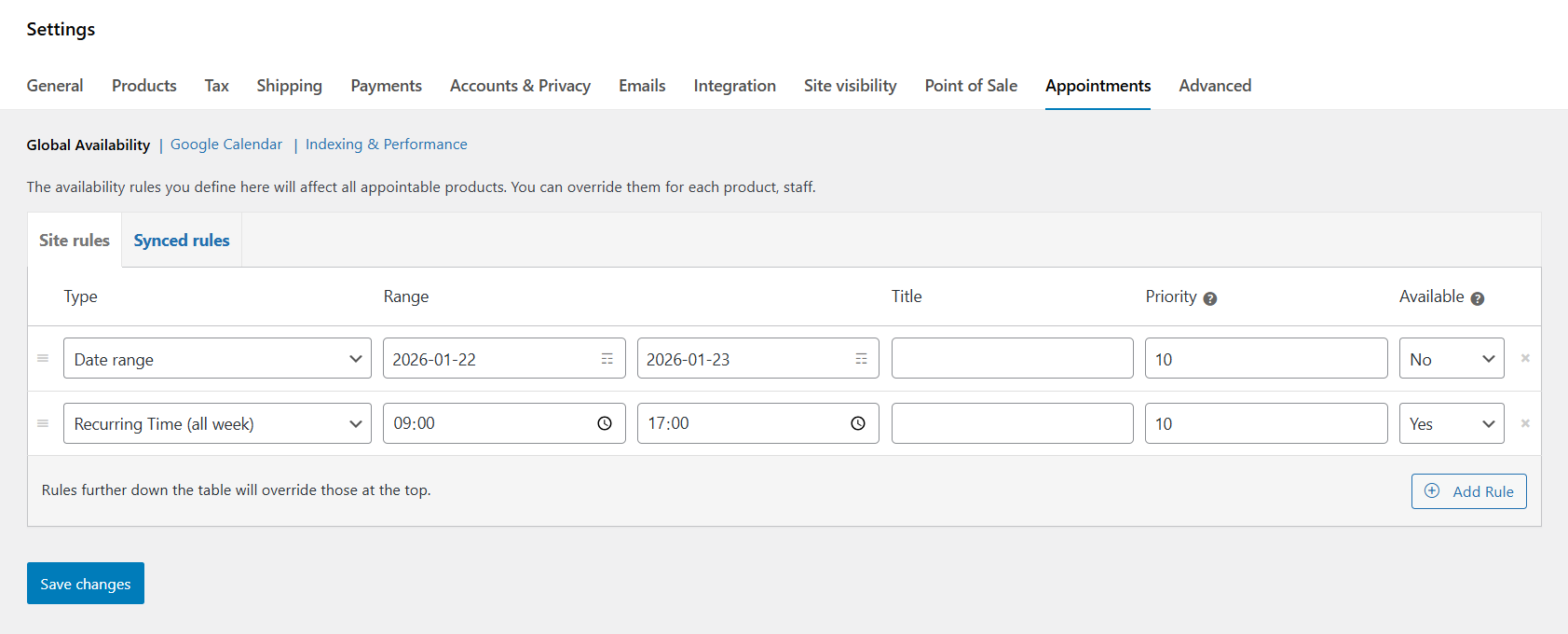
| Tab | What it is |
|---|---|
| Site rules | Rules you add and edit in WordPress |
| Synced rules | Read-only blocks from Google Calendar (two-way sync) |
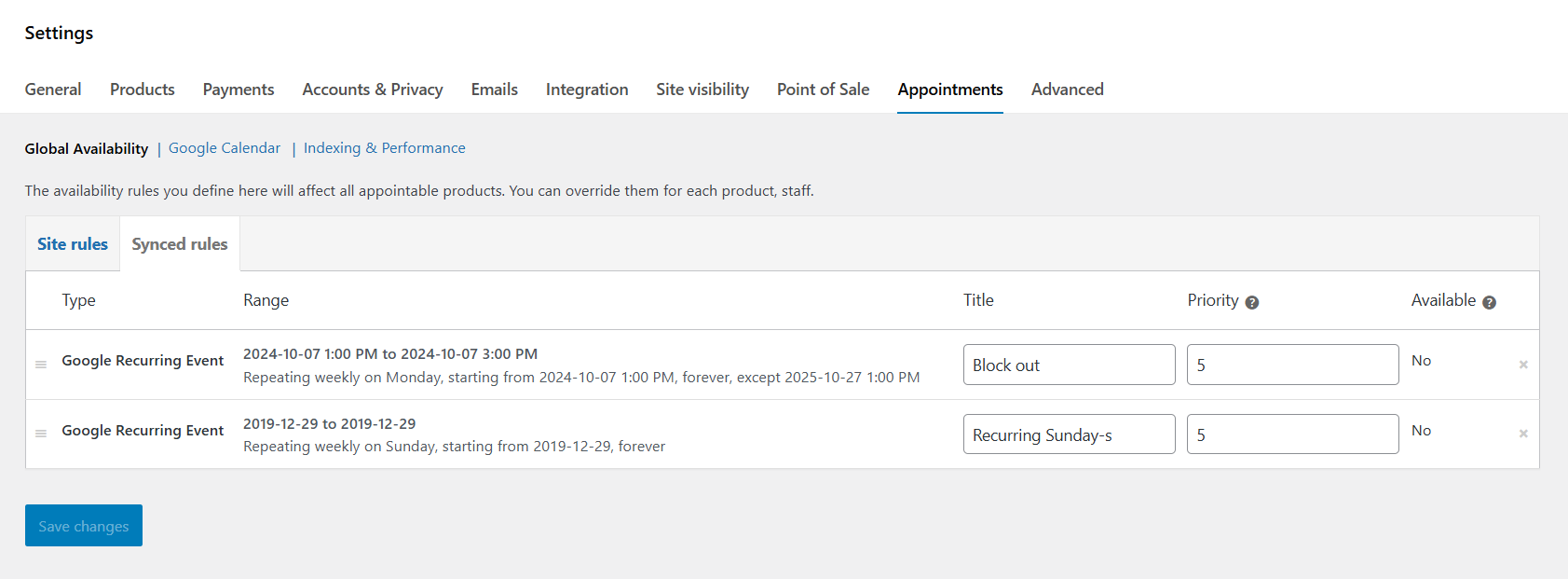
Synced rules update when Google events change after sync. Edit events in Google Calendar, not in WordPress.
Click Save changes on the Appointments settings screen after edits.
Google Calendar
OAuth and store calendar at WooCommerce → Settings → Appointments → Google Calendar.
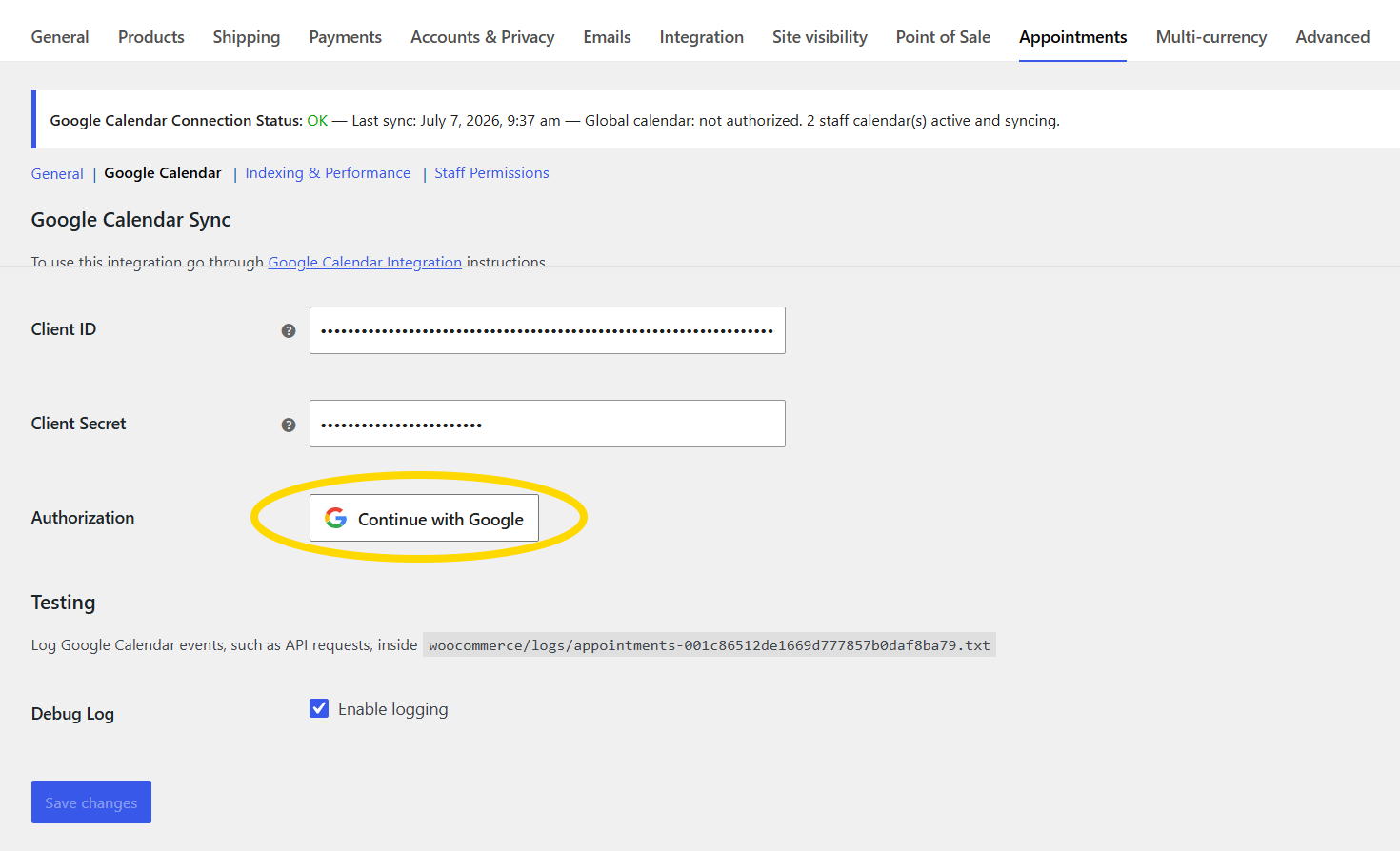
| Setting | Purpose |
|---|---|
| Client ID / Client Secret | From Google Cloud Console |
| Continue with Google | Authorize the store account |
| Calendar ID | Store calendar; leave empty for staff-only sync |
| Sync preference | One-way or two-way (after OAuth) |
| Re-sync from Google Calendar | Full busy-event import (two-way + calendar ID) |
| Backup & Restore | JSON export/import before large re-syncs |
| Debug log | API logging (Testing section) |
Continue with Google replaced “Connect with Google” in 5.3.5+. Re-sync appears only with two-way sync and a calendar ID selected.
Full walkthrough: Google Calendar sync.
Indexing and performance
Enable the availability cache for busy stores.
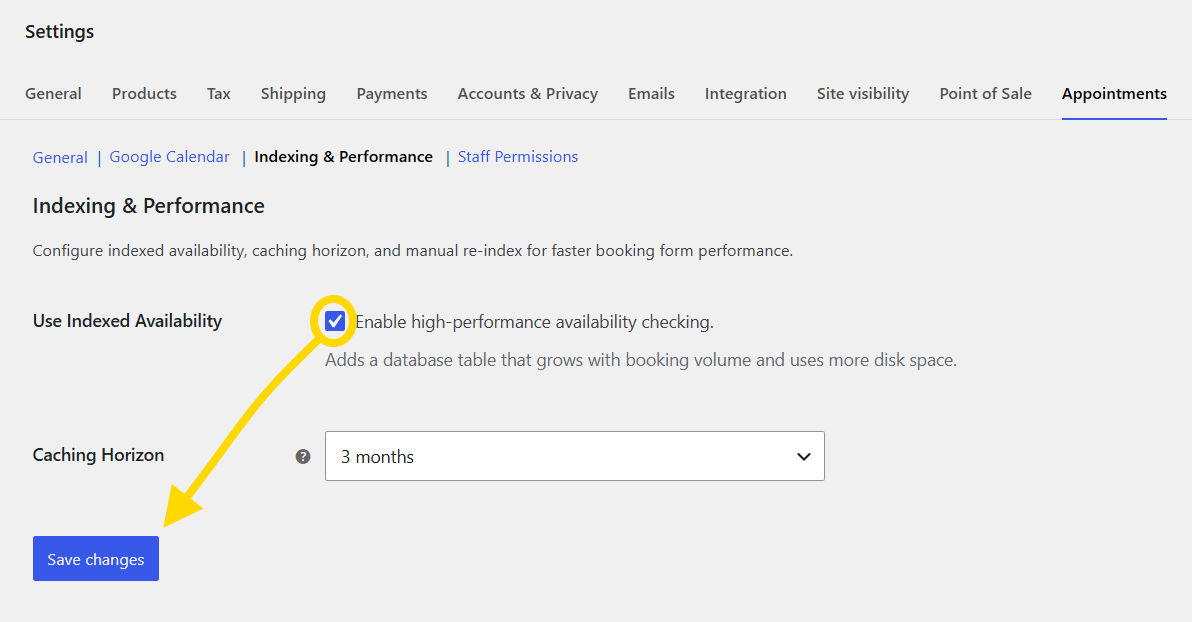
| Option | Purpose |
|---|---|
| Use indexed availability | Cache table for fast slot lookups |
| Caching horizon | Months ahead to pre-cache (1–12) |
| Manual re-index | Rebuild cache (shown when indexing is on) |
Enable indexing soon after install on high-traffic stores.
Details: Indexing & performance.