Timezones
Every part of WooCommerce Appointments converts appointment times for the person viewing them — customers, staff, and admins can be in different cities without manual timezone math.
How it works
Three levels work together: site timezone (WordPress → Settings → General) for storage and availability logic, customer timezone (booking form or My Account), and staff timezone (user profile). Each viewer sees times in their own zone.
What you need
- WordPress → Settings → General timezone set before you create products — Global settings
- For Google Calendar sync, match Google Calendar timezone to the site — Google Calendar
You are ready when
- ✅ Site timezone matches your primary business location
- ✅ A test booking shows the expected time on the storefront and in Appointments → Calendar
- ✅ Staff with different timezones enter availability in their local hours (see Staff timezone)
Timezone display is enabled site-wide by default (wc_appointments_timezone_support_enabled). The per-product Customer timezones checkbox was removed in 5.3.11.
Disable site-wide support:
add_filter( 'wc_appointments_timezone_support_enabled', '__return_false' );
To hide timezone UI while keeping internal support, use woocommerce_appointments_show_timezone — see Disabling timezone display.
Add filters in your child theme's functions.php or a small site-specific plugin — not in the plugin files (updates will overwrite them). See Where to add code.
Three timezone levels
| Level | Where it's set | What it does |
|---|---|---|
| Site timezone | WordPress → Settings → General | Storage, availability calculations, fallback display |
| Customer timezone | Booking form picker or My Account | Slots and appointment times in the customer's zone |
| Staff timezone | User profile → Staff Details | Staff schedule and availability rules in local time |
Setting up timezones
Site (store) timezone
Set in WordPress → Settings → General. Choose the timezone that matches your primary business location. See Global settings.
Timezone dropdown
Wherever the plugin shows a timezone picker (staff profile, My Account, booking form):
- City + abbreviation — e.g.
New York — ET - Hover tooltip — full identifier, e.g.
Timezone: America/New_York - ET - Default —
Default (ET)follows the site timezone dynamically - Search — find timezones by city name
Browser detection
On staff profile and My Account → Account Details, Use my current timezone appears when the browser timezone differs from the selected value.
Customer timezone
My Account preference
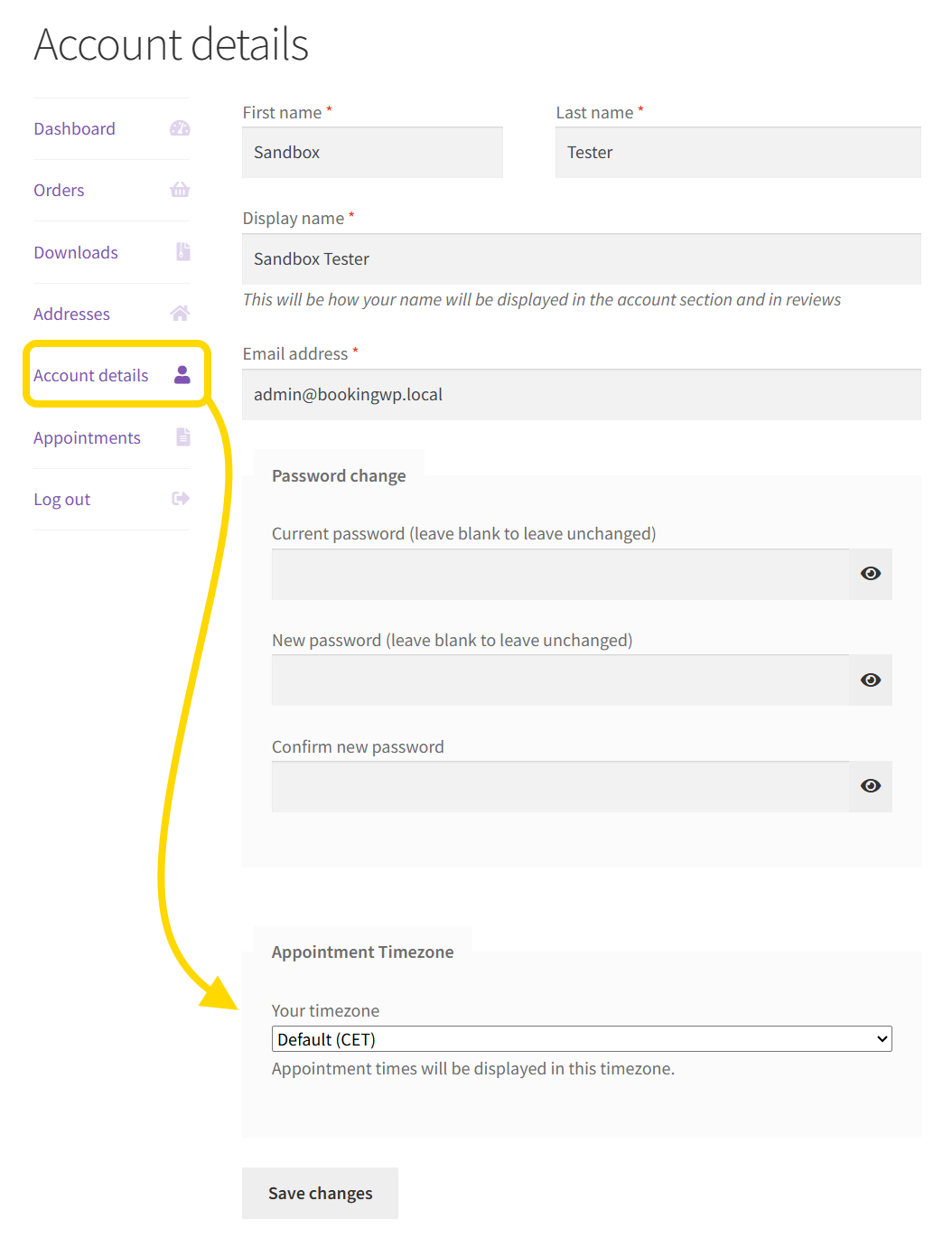
Logged-in customers save a preference under Appointment Timezone:
- Default — follows the site timezone
- Specific timezone — any value from the dropdown
Resolution order when booking:
- Posted timezone from the booking form (
wc_appointments_field_timezone) - Saved My Account preference (
wc_appointments_timezoneuser meta) display_timezonefrom date picker AJAX- Session cookie from the form picker (
appointments_time_zone) - Site timezone (fallback)
Most customers need no change — the booking form auto-detects browser timezone.
Booking form
For minute- or hour-based products, a selection info row sits between the calendar and time slots:
- Right side shows the current abbreviation (e.g.
ET) as a clickable link - Click to open the full timezone dropdown
- All slots convert to the selected timezone
When the customer picks a zone different from the site, times shift accordingly (e.g. 15:00 CET → 9:00 AM ET).
For logged-in users (including staff booking on the storefront), changing timezone from the form also updates wc_appointments_timezone user meta (5.3.0+).
Cart, checkout, and My Account
- Cart / checkout — appointment time with abbreviation when customer zone ≠ site zone
- My Account → Appointments — When column includes abbreviation when zones differ
Staff timezone
Set staff timezone
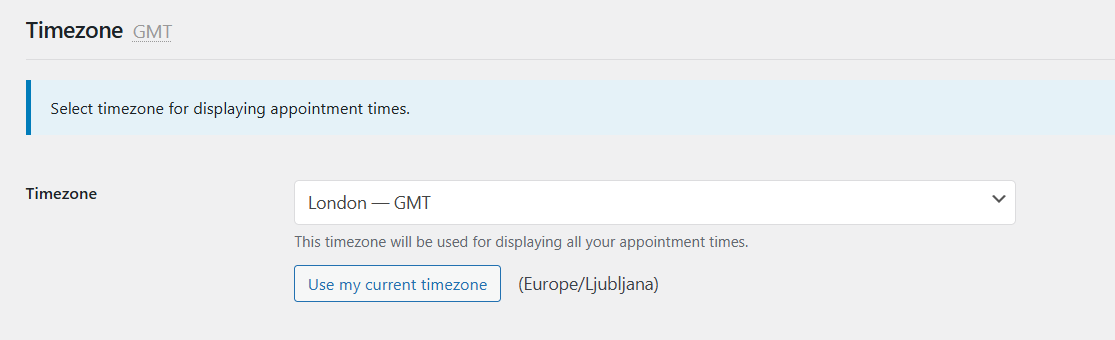
Users → Profile → Staff Details → Timezone:
- Pick a timezone or keep Default (site timezone)
- Use Use my current timezone when the browser differs
Availability rules in staff's timezone
When staff timezone ≠ site timezone:
- A note above the rules table: "Times are shown in timezone: CET"
- Staff enter rules in local time — Monday 9:00–17:00 means 9–5 in their zone
- On save, the plugin converts to site timezone for storage
- Customers see correct slots after staff → site → customer conversion
Staff always work in their own local time.
Where timezones appear
Admin calendar — appointment panel (view)
In view mode, the Customer section shows:
- Timezone label next to the customer name — e.g.
New York (ET) - Hover for local time and offset relative to you — e.g. "New York (ET) — Jan 15, 2:00 PM (6h behind)"
The label appears only when the customer timezone differs from yours (not necessarily the site timezone).
Classic appointment edit screen
Appointments → Edit:
- Date/Time heading shows your abbreviation; fields are in your timezone
- Staff labels show staff abbreviations when their zone differs from yours
- Customer's Timezone row when customer ≠ your zone
- Booking Timezone row when the original booking zone differs from the customer's current account preference
Email notifications
All email notifications are timezone-aware (5.2.0+):
| Recipient | Date/time shown |
|---|---|
| Admin / staff | Recipient's timezone |
| Customer | Customer's timezone |
Admin/staff emails add Customer's Timezone and Staff timezone rows when those zones differ from the recipient's. Multiple staff in different zones → recipients grouped by timezone, each email in their local time.
Order details
Thank-you page, order emails, My Account → Orders, and admin order view show:
- When — with abbreviation when viewer zone ≠ site
- Staff — abbreviation when staff zone ≠ viewer
- Customer's Timezone — admin context only
List tables
- My Account → Appointments — abbreviation on When for time-based appointments
- Admin appointments list — abbreviation when appointment time differs from admin user's zone
Calendar unavailable overlay
In Week and Day views, unavailable blocks convert to the filtered staff member's timezone so blocked times match what they configured.
Hover tooltips
| Where | Visible text | Hover tooltip |
|---|---|---|
| Dropdown options | New York — ET | Timezone: America/New_York - ET |
| Date/Time heading (meta box) | CET | Timezone: Europe/Berlin - CET |
| Customer timezone | New York (ET) | New York (ET) — Jan 15, 2:00 PM (6h behind) |
| Staff timezone | Tokyo (JST) | Tokyo (JST) — Jan 16, 12:00 AM (8h ahead) |
| List / order summary | ET | Timezone: America/New_York - ET |
Customer and staff tooltips show where, when (local date/time), and offset from you. Half-hour offsets (e.g. India UTC+5:30) display correctly.
Booking flow (end to end)
- Customer visits the form — browser timezone detected; session cookie set
- Slots shown in customer timezone (site → customer conversion)
- Selected slot stored in site timezone; cart shows customer time + abbreviation
- Checkout creates appointment; customer timezone saved as metadata
- Admin email — date in admin timezone; customer timezone row when different
- Staff opens calendar — appointment at correct local time; panel shows customer tooltip
- Customer checks My Account — time in their timezone
Creation timezone metadata
On create, the plugin stores the site timezone as _creation_tz so conversions stay accurate if the site timezone changes later or across DST transitions.
Disabling timezone display
For single-timezone businesses, hide all timezone UI with woocommerce_appointments_show_timezone:
add_filter( 'woocommerce_appointments_show_timezone', '__return_false', 10, 3 );
When disabled:
- Frontend — no picker, no abbreviations in cart or My Account
- Admin — no profile timezone section, no abbreviations in lists or meta boxes
- Emails — dates without abbreviations
You can disable selectively (frontend only, admin only, or per user). See Developers for scope; full filter reference after developer login.
Google Calendar sync always uses the WordPress site timezone when calling the Google API. The same instant syncs correctly regardless of this filter. Set the connected Google Calendar timezone to match the site for predictable clock times.
Related
- Global settings — site timezone and formats
- Availability rules — staff rules in local time
- Email notifications — timezone-aware emails
- Google Calendar sync — outbound sync uses site timezone