Calendar View

The admin calendar is your command center for managing appointments. With real-time updates, drag-and-drop functionality, and beautiful visual indicators, it's never been easier to stay on top of your schedule.

Live Updates That Keep You in Sync

Our calendar features real-time updates using Server-Sent Events (SSE), so you're always working with the latest information - no more refreshing the page!

What Live Updates Do For You

  • Instant New Appointments: See new appointments appear the moment they're created anywhere in the system
  • Real-time Edits: Changes refresh right where you are without manual page reloads
  • Multi-user Magic: Updates automatically sync across all open calendar instances
  • SSE Integration: Uses the /wp-json/wc-appointments/v2/sse endpoint for smooth, efficient streaming
  • Drag & Drop Updates: Move and resize appointments instantly (availability checks only apply to customer bookings)

Calendar Views for Every Need

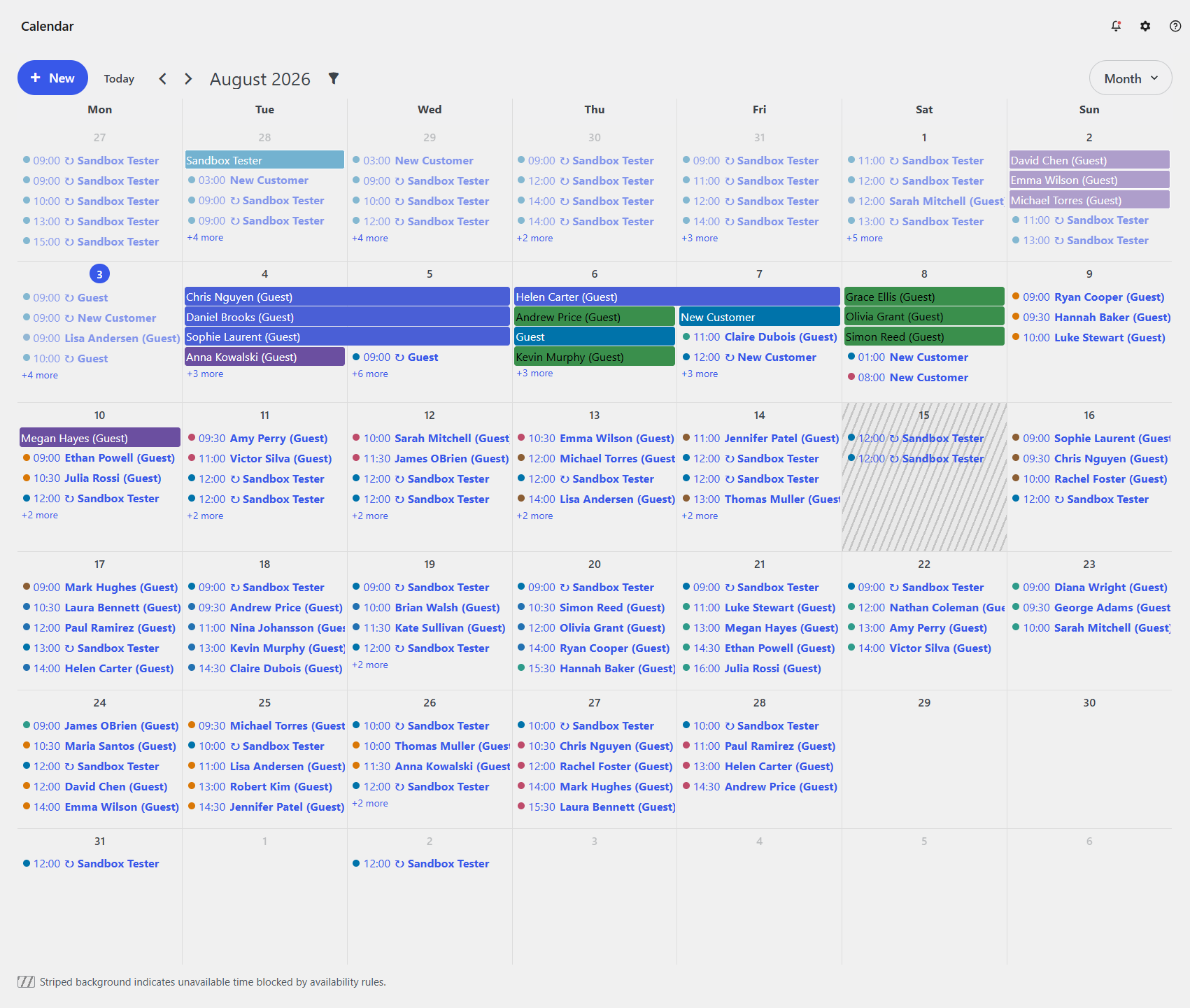
Month View

Perfect for long-term planning and seeing the big picture of your schedule.

Month Calendar View

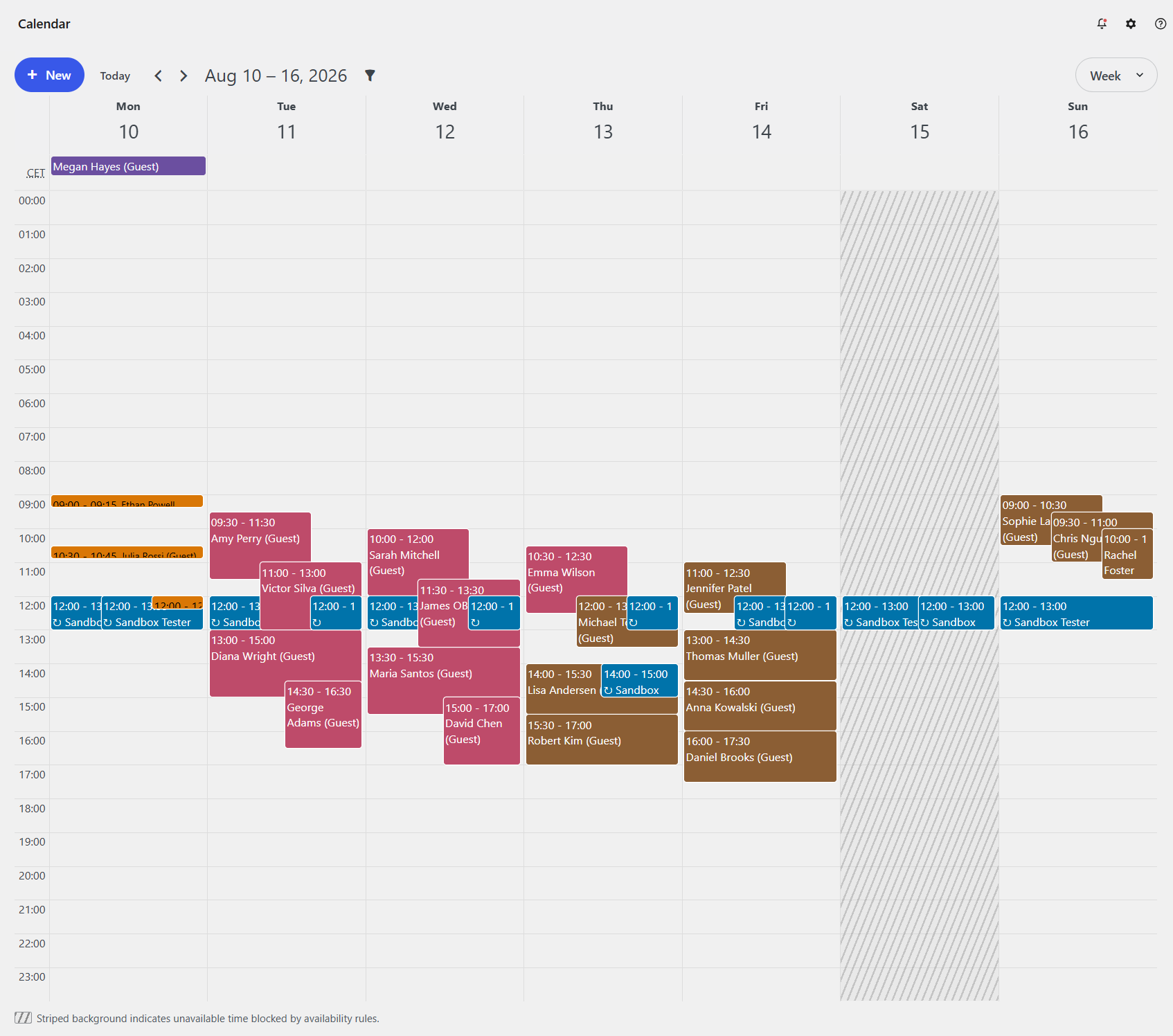
Week View

Ideal for daily operations and managing staff schedules across the week.

Week Calendar View

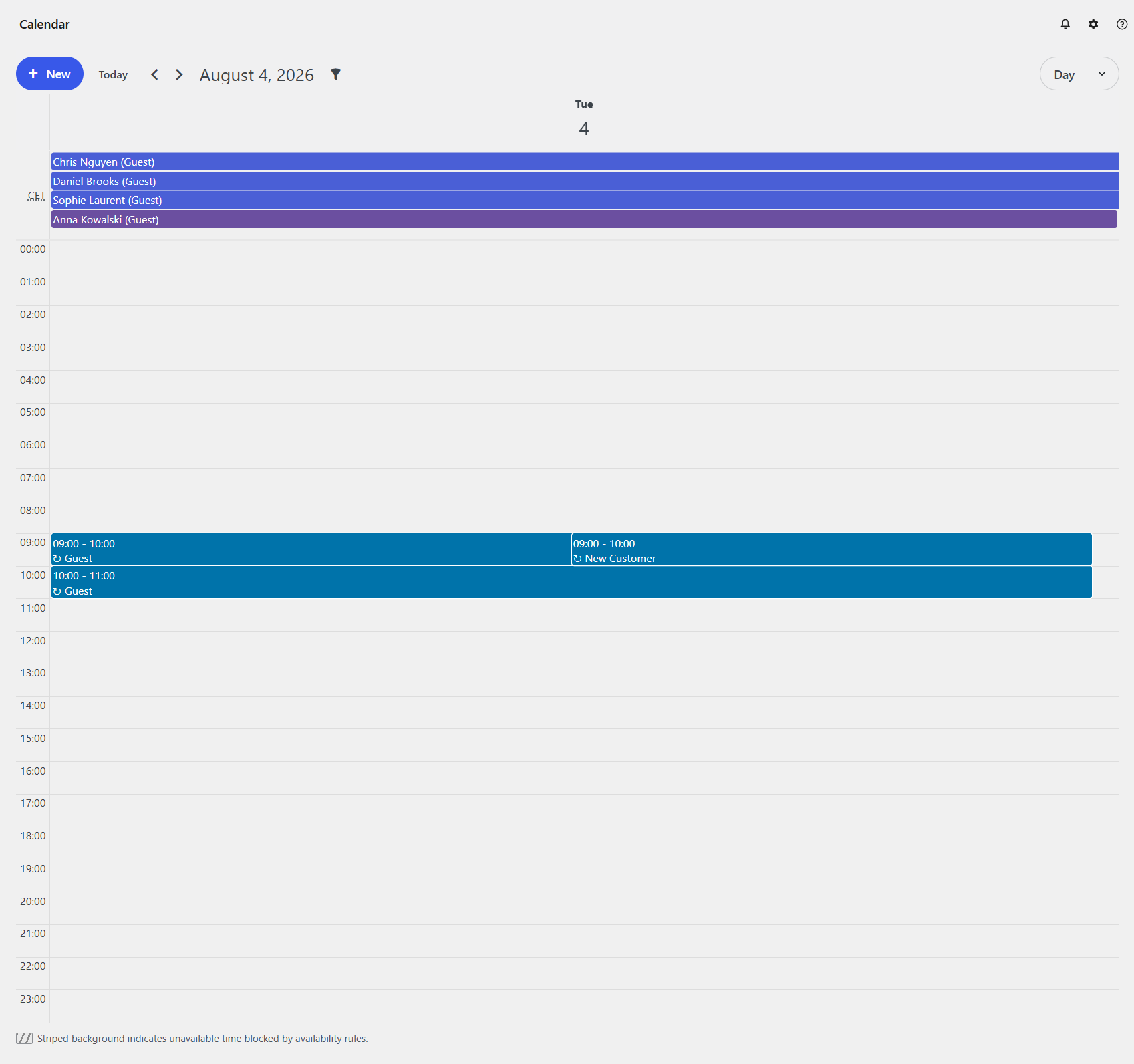
Day View

Great for detailed, hour-by-hour management of a single day's appointments.

Day Calendar View

List View

Quick overview of all appointments with easy filtering and sorting options.

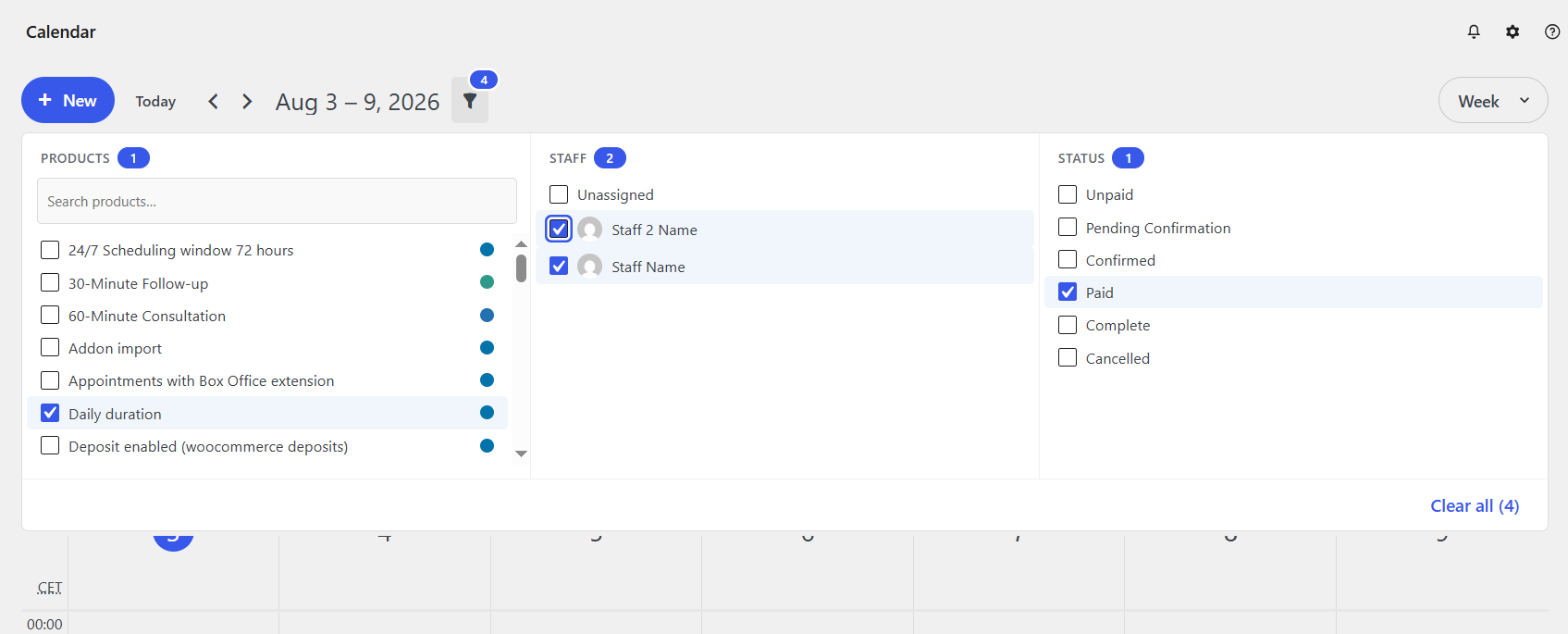
Multi-Select Filter Panel

The calendar toolbar includes a Filter button that opens a collapsible panel with three multi-select filter sections:

Multi-select filter panel

Product Filter

  • Select one or more appointable products to show only their appointments
  • Each product displays its assigned calendar color as a dot next to the name
  • Search field for quick lookup in large product lists

Staff Filter

  • Select one or more staff members (admin users only — staff users are locked to their own appointments)
  • Includes an Unassigned option to show appointments with no staff assigned
  • Staff avatars are displayed next to names

Status Filter

  • Filter by appointment status: Unpaid, Pending Confirmation, Confirmed, Paid, Complete, Cancelled
  • Combine with product/staff filters for precise views

Filter Chips

Active filters appear as chips in the toolbar when the filter panel is closed:

  • Each chip shows the filter name with an × button to remove it
  • A badge on the Filter button shows the total number of active filters
  • Clear all button in the panel footer removes all filters at once
  • For staff users, their own staff filter appears as a locked chip (non-removable)

Date Navigation

  • Quick Navigation: Jump to previous/next periods with simple arrow controls
  • Today Button: Instantly return to the current date
  • Title Display: Clearly shows the current month or date range being viewed

Drag & Drop That Just Works

Our React-based calendar makes managing appointments intuitive and fast.

Moving Appointments

  • Drag to New Time: Click and hold any appointment, then drag it to a new time slot
  • Cross-day Moves: Easily move appointments between different days or weeks
  • Staff Reassignment: Drag appointments between staff columns when filtering by staff

Resizing Appointments

  • Duration Changes: Simply drag the bottom edge of an appointment to make it longer or shorter
  • Visual Feedback: See the new time range as you drag
  • Smart Snapping: Automatically aligns to your configured time intervals

Adding Appointments Made Simple

Quick Creation Methods

  • Click to Add: Click any empty time slot to open the appointment creation modal with the time already filled in
  • Drag to Add: In Week/Day views, drag across empty cells to create a new appointment with your selected time range
  • Smart Prefilling: The modal automatically populates with the time range you selected

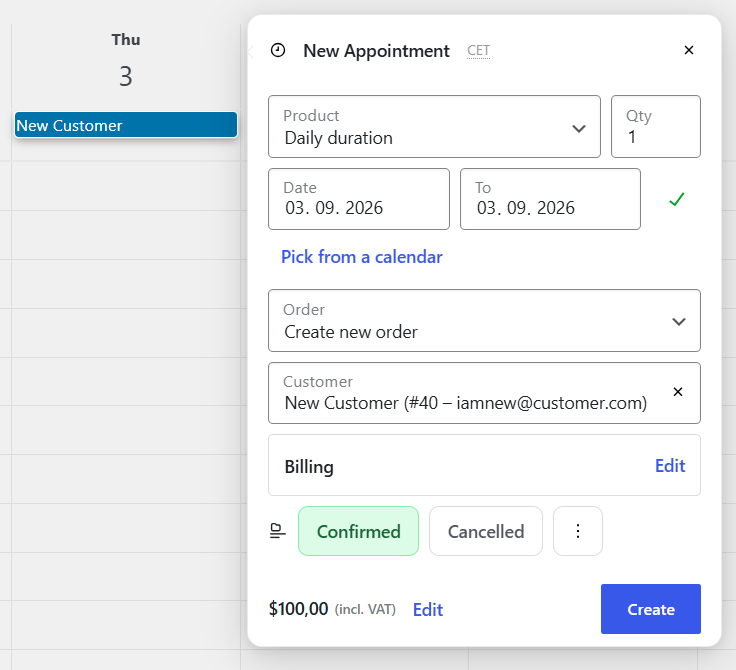
The Modern Appointment Creation Modal

Our new appointment modal includes everything you need:

Add Appointment Modal

Product Selection

  • Instant Search: Find appointable products quickly with smart search
  • Product Filtering: Only shows products that can be booked as appointments

Staff Management

  • Multiple Staff Support: Handle complex staffing scenarios with ease
  • "No Preference" Option: Let the system assign staff automatically
  • Staff Availability: Only shows available staff for the selected time

Finding Available Slots

  • Check Availability: Open the slots finder with the Pick from a calendar button and choose an available slot for the selected product instead of guessing.

Add Appointment Modal Slots

Customer Creation

  • New Customer Accounts: Create complete customer profiles with all billing information
  • Existing Customer Search: Find and select existing customers quickly
  • Smart Account Creation: "Create account" checkbox automatically hides when you select an existing customer
  • Data Consistency: Customer creation matches the checkout process perfectly

Payment Integration

  • Multiple Payment Methods: Support for various payment gateways
  • Multi-currency Support: Handle international bookings with automatic currency conversion
  • Deposit Options: Integrate with WooCommerce Deposits for partial payments

Time Zone Intelligence

  • Automatic Detection: Detects and converts time zones automatically
  • Local Time Display: Shows times in the appropriate time zone for both admin and customer
  • Timezone Context: When the customer's timezone differs from yours, a timezone label (e.g., New York (ET)) appears next to the customer's name. Hover over it to see the appointment time in the customer's local time and the offset from you (e.g., "New York (ET) — Jan 15, 2:00 PM (6h behind)"). See Timezones for full details.
info

The add dialog is rendered from includes/admin/views/html-appointment-modal.php. It uses a Backbone.js modal to provide a seamless, single-page application experience.

Viewing & Managing Appointments

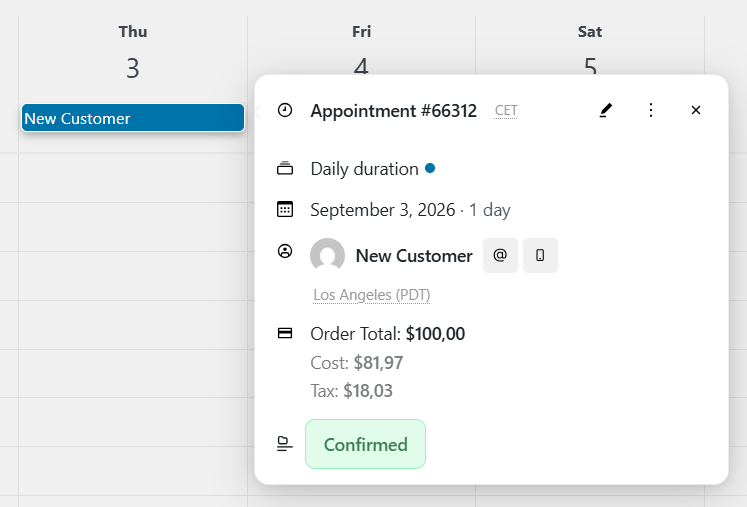
Click any appointment on the calendar to view its details, status, and make quick changes.

Appointment Modal View

Quick Actions

  • Status section: Use the Status segmented controls in the modal body to instantly see the current status and change it.
  • Safe cancellation: Switching to Cancelled prompts for confirmation before applying.
  • Edit Details: Click "Edit Appointment" to open the full appointment editor for complex changes.
Developer Extensibility

The appointment view modal content is fully filterable via JavaScript hooks. Developers can add custom fields, modify existing sections, or inject content at specific positions. See the JavaScript Hooks documentation for examples and the complete API reference.

Rescheduling

  • Drag to Reschedule: Click and hold any appointment, then drag it to a new time slot.
  • Resize to Change Duration: Drag the bottom edge of an appointment to increase or decrease its duration.
  • Conflict Detection: The system automatically checks for availability conflicts when moving appointments.

Unavailable Rules Overlay

The calendar fetches availability rules from the REST API and renders unavailable time blocks directly on the calendar as striped background events.

How It Works

  1. After appointments load, the calendar fetches availability rules from the wc-appointments/v2/availabilities endpoint
  2. Rules are fetched in a single optimized batch request covering all relevant scopes
  3. Unavailable rules are expanded into time intervals and rendered as striped background blocks
  4. Available rules follow the scope priority hierarchy: Global → Product → Staff (each scope overrides the previous)

Rule Scopes

The overlay fetches rules from three scopes:

ScopeWhen LoadedDescription
GlobalAlwaysSite-wide availability rules
ProductWhen a product filter is activeProduct-specific rules
StaffWhen a staff filter is activeStaff-specific rules

Tooltips

Each unavailable block carries metadata from the original rule:

  • Rule title — the name given to the availability rule
  • Rule scope — Global, Product, or Staff
  • Rule type — the rule type (e.g., time, custom:daterange, rrule)

This makes it easy to identify which rule is blocking a particular time slot without leaving the calendar.

View Behavior

  • Month view — only full-day unavailable blocks are shown (partial-day rules are hidden to avoid clutter)
  • Week/Day views — time-level unavailable blocks are shown with precise start/end times
  • Timezone conversion — when a staff member has a different timezone, rule times are converted to their timezone (except in month view where day-level granularity makes shifting cause rules to bleed into adjacent days)

Visual Improvements That Make Sense

Enhanced User Experience

  • Interactive Hover States: Visual feedback when you hover over appointments and time slots
  • Clear Drag Indicators: Visual cues show exactly where appointments will be placed
  • Past Appointment Styling: Automatically displayed in grayscale to distinguish from upcoming appointments
  • Unavailable Time Patterns: Stripe patterns clearly show when time ranges aren't available
  • Color-coded Appointments: Each appointment uses its assigned product color for easy identification

Smart Loading States

  • Skeleton Loading: Appointment cards show skeleton loading while data is being fetched
  • Instant Modal Loading: Appointment modal loads instantly with all data pre-fetched
  • Progressive Loading: Calendar loads initial view quickly, then loads additional data in the background

Time Format That Works for You

  • WordPress Time Format: Calendar times display using the format you've set in WordPress user preferences
  • Time Zone Aware: All times respect the admin user's configured time zone. Staff members with a different timezone see appointments and unavailable rules at the correct local time. See Timezones for how timezone display works across the plugin.
  • Local Time Methods: Uses WordPress local time functions for consistent time display everywhere

Screen Options & Legacy Support

Modern Calendar Features

  • React-powered: Built with modern React components for better performance and user experience
  • Responsive Design: Adapts perfectly to different screen sizes and admin panel configurations
  • Accessibility First: Full keyboard navigation and screen reader support for all users

Legacy Calendar Toggle

Sometimes you need the old calendar back - we've got you covered:

  • Screen Options: Find the legacy toggle in Screen Options in the top-right of the admin page
  • Legacy Mode: Temporary fallback to the original calendar implementation
  • Compatibility Ensured: Maintains compatibility with custom code or themes that might conflict with the React calendar
tip

Need the legacy calendar? Open Screen Options and enable the legacy toggle. We only recommend this if you experience compatibility issues with the modern calendar.

Performance That Keeps Up With You

Optimized Loading

  • Smart Caching: Intelligent caching reduces database queries and speeds up page loads
  • Lazy Loading: Loads data progressively so the calendar feels fast even with lots of appointments
  • Efficient Rendering: React-based rendering updates only what changes

Database Optimizations

  • Indexed Queries: Uses database indexes for fast appointment lookups
  • Query Optimization: Smart query patterns reduce database load

Troubleshooting Common Issues

Calendar Not Loading

  • Check JavaScript: Ensure JavaScript is enabled in your browser
  • Clear Cache: Clear your browser cache and any caching plugins
  • Check Console: Look for JavaScript errors in the browser developer console

Live Updates Not Working

  • Verify SSE: Check that Server-Sent Events are supported in your browser
  • Network Issues: Check your network connection and any firewall settings
  • Plugin Conflicts: Disable other plugins temporarily to identify conflicts

Drag & Drop Not Working

  • Browser Support: Ensure you're using a modern browser that supports drag and drop
  • Touch Devices: Use touch-friendly gestures on mobile devices
  • Permissions: Check that you have the appropriate user permissions for editing appointments

Getting the Most Out of Your Calendar

Best Practices

  • Regular Updates: Keep your browser updated for the best performance
  • Consistent Time Zones: Set your WordPress user time zone correctly
  • Staff Management: Keep staff availability up to date for accurate scheduling

Pro Tips

  • Color Coding: Use product colors effectively for visual organization