Staff Management

Staff are WordPress users who can be assigned to appointable products. Each staff member can have their own availability rules, timezone, pricing, and Google Calendar sync.

Create Staff

There are two ways to create a staff member:

Option A — From the Users screen:

  1. Go to Users → Add New.
  2. Fill in the user details and set the role to Shop Staff (or Administrator/Shop Manager).
  3. Save the user.

Option B — From the Staff screen:

  1. Go to Appointments → Staff.
  2. Click Add Staff and select an existing user or create a new one.
note

Any WordPress user with the Shop Staff, Shop Manager, or Administrator role can be assigned as staff on a product. The Shop Staff role is specifically designed for staff members who should only see their own appointments.

Staff Settings

Edit the staff member's user profile (Users → Edit User) to configure:

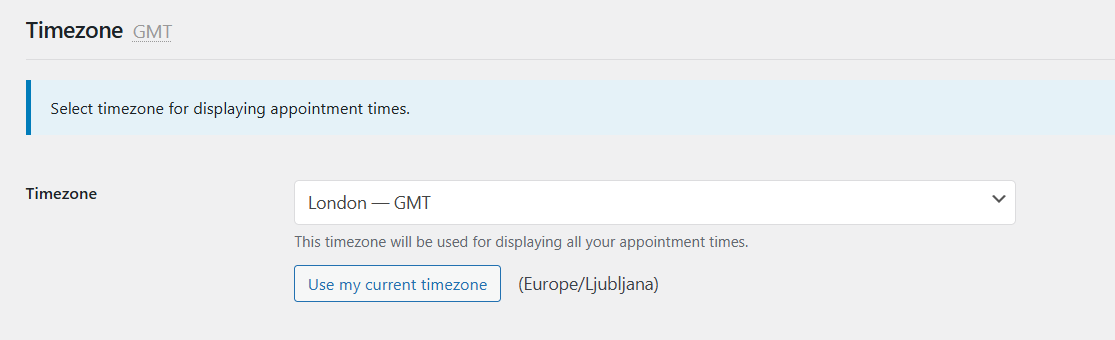
Timezone

Set the staff member's working timezone using the enhanced timezone dropdown. Options:

  • Default — Uses the site timezone (from Settings → General). The staff member's schedule automatically follows any site timezone changes.
  • Specific timezone — Select a timezone (e.g., America/New_York). Useful when staff work in different locations.

A "Use my current timezone" button appears when the browser-detected timezone differs from the current setting. See Timezones for full details on how timezone conversion works for availability rules.

Availability

Staff availability rules are organized into two tabs:

  • My Rules — manually created rules that the staff member (or admin) can add, edit, delete, and reorder
  • Synced Rules — rules synced from Google Calendar (read-only, with a count badge showing the number of synced rules)

When the staff member's timezone differs from the site timezone, a note above the rules table shows which timezone the rules are displayed in. Times are automatically converted between staff and site timezones when saving.

See Availability Rules for details on how rules work and how priority is resolved.

Google Calendar Sync

Connect the staff member's personal Google Calendar for two-way sync. This requires the Google Calendar integration to be set up first at the store level. Each staff member then authorizes their own calendar.

Assign Staff to Products

  1. Edit an appointable product.
  2. Open the Staff tab.
  3. Enable Has Staff to show staff options.
  4. Add staff members to the product.
  5. Optionally set an Additional Cost per staff member (added to the product base price).

Assigning staff to product

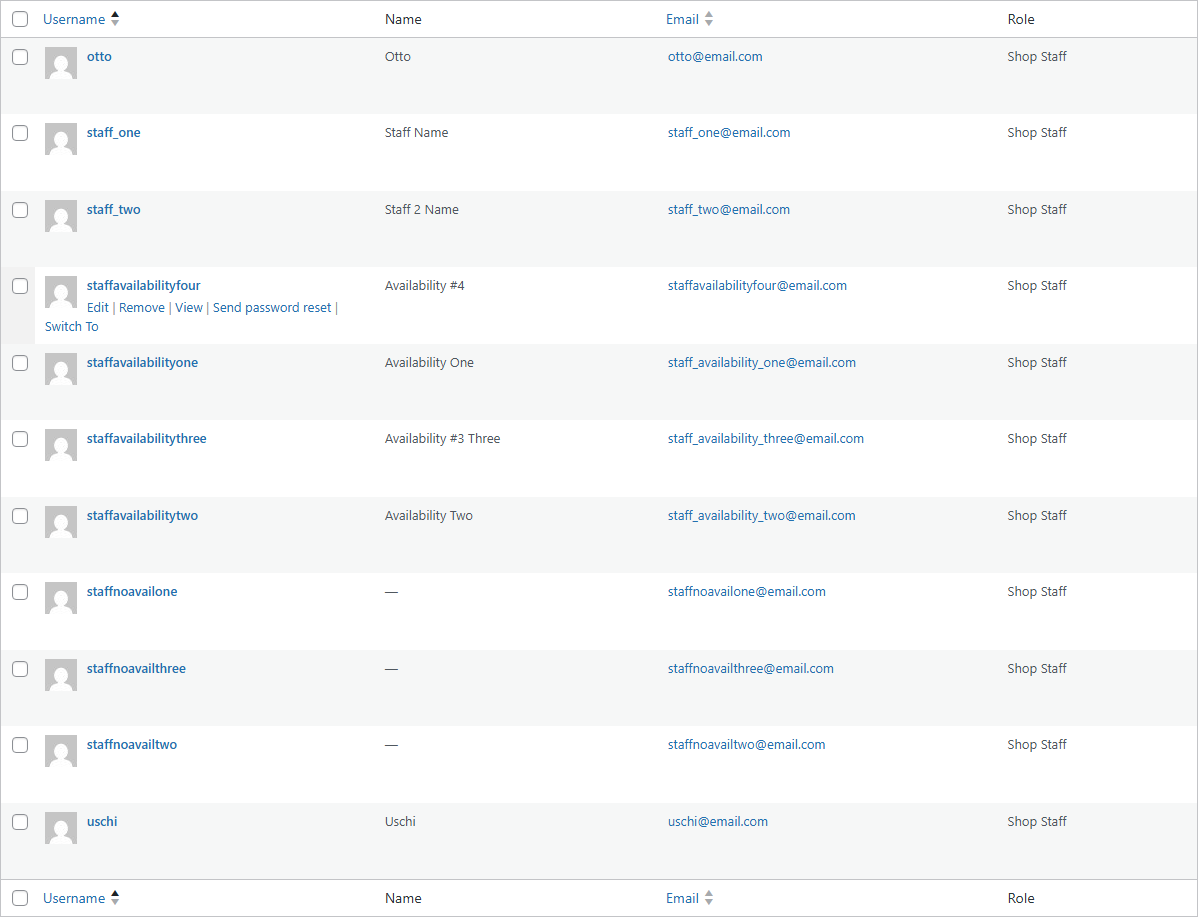
Staff list

Staff edit screen

Staff Assignment Modes

When a product has staff enabled, you choose how staff are assigned to each appointment:

ModeBehaviorBest For
Customer selectsCustomer picks a staff member from a dropdown on the booking formServices where the customer has a preference (e.g., hairdresser, therapist)
Automatically assignedSystem assigns the first available staff memberServices where any staff member can provide the service
All staff requiredAll assigned staff are booked together for each appointmentServices requiring a team (e.g., a class with multiple instructors)

Customer Selects

  • A dropdown appears on the booking form listing available staff.
  • Only staff who are available for the selected date/time are shown.
  • The customer's choice is saved with the appointment.

Automatically Assigned

  • No staff dropdown is shown to the customer.
  • The system picks the first available staff member when the appointment is created.
  • Useful when the customer doesn't need to choose.

All Staff Required

  • All staff assigned to the product are booked simultaneously.
  • The appointment is only available when all assigned staff are free.
  • Each staff member receives notifications and calendar events.

Staff Permissions

Staff members can be given granular permissions to control what they can access in the admin. See Roles & Capabilities for the full permissions reference.

Staff Portal

When a staff member logs into WordPress, they see a dedicated Staff Portal — a streamlined admin experience with custom dashboard widgets, a simplified menu, and permission-based access. See Staff Portal for the full guide.