Admin Appointment Panel
The admin appointment panel is the default way to create, view, and edit appointments in the WordPress admin (since 5.3.0). It opens beside the calendar or list instead of a full-page modal.
How it works
Click an appointment or empty slot on the calendar or Appointments list to open the panel. View shows a summary; Edit changes fields with availability checks; Create runs a staff booking flow aligned with storefront checkout data.
What you need
- WooCommerce Appointments 5.3+
- Permission to manage appointments (admin, or staff with the right Staff Permissions)
What you can do
- ✅ Create from calendar slots, list Add New, or staff portal
- ✅ Pick from a calendar — mini-calendar and slot chips on create/edit
- ✅ Attach or create orders, deposits, add-ons, and multi-currency (when configured)
- ✅ Edit in WordPress — jump to the classic edit screen when needed
Important
- Enabled site-wide by default — disable with
wc_appointments_admin_panel_enabled(returnfalse) - Classic Appointments → Add Appointment and the legacy modal remain for compatibility
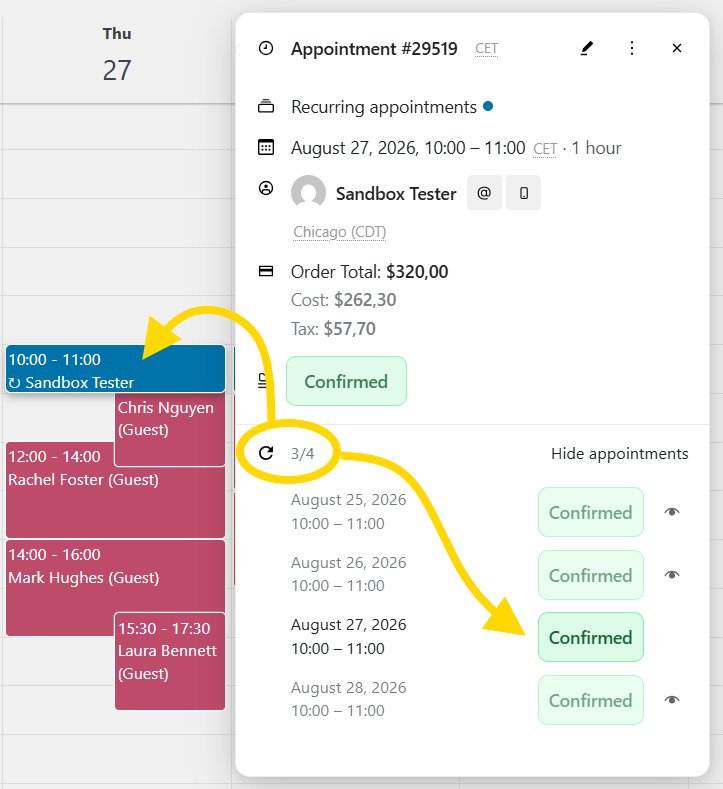
- Recurring series show a sessions list and scoped actions — see Recurring packages
Setup order: Open the panel → Panel modes → Create flow → View & edit
See also: Calendar View · Managing Appointments
Open the panel
| Action | Result |
|---|---|
| Click an appointment on the calendar | View mode for that appointment |
| Click an empty slot on the calendar | Create mode with date/time prefilled |
| Drag across empty cells (week/day view) | Create mode with selected range |
| Add New on the appointments list or calendar | Create mode |
The panel prefers anchoring to the right of the selected event, then the left, then centered when neither side fits.
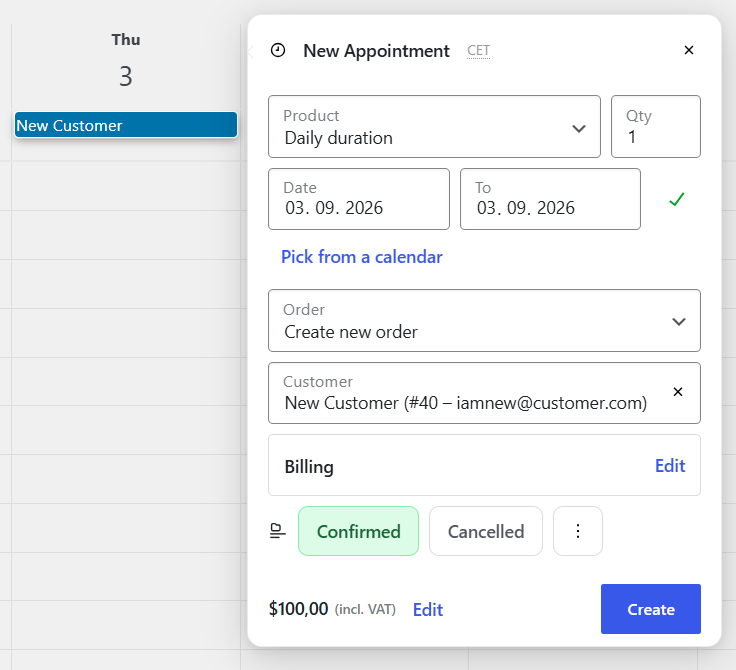
Panel modes
View
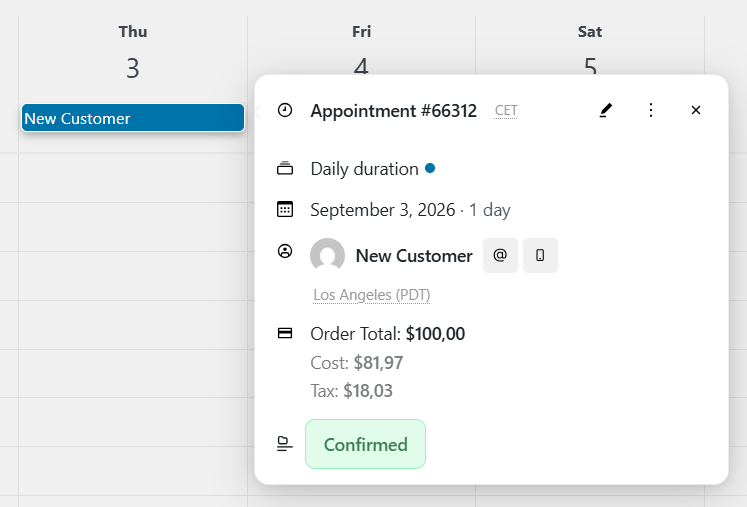
Read-only summary: product, schedule, staff, customer (with muted attendance beside the name), order, status, and notes. Appointment status is the primary control; attendance is display-only here. Header actions:
- Edit — switch to edit mode in the same panel
- More — Edit in WordPress opens the classic appointment edit screen in a new tab
Edit
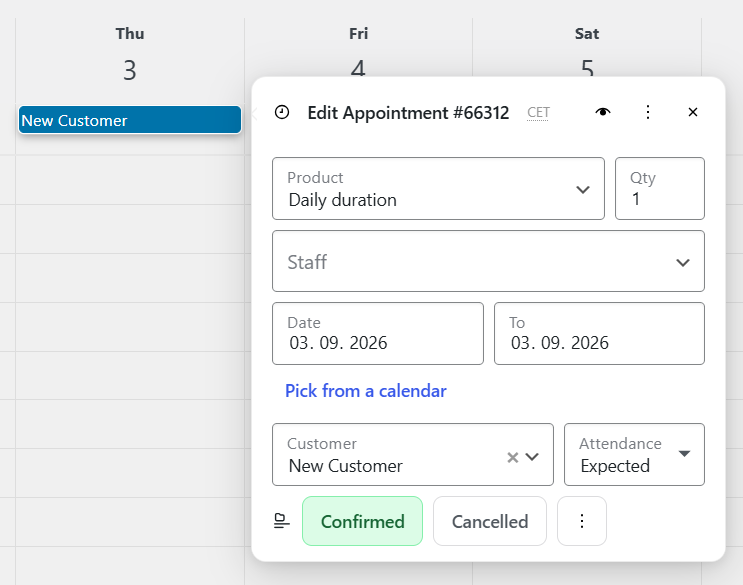
Change status (filter chips), date/time, staff, quantity, add-ons, and other fields. Attendance is a select beside Customer (about one-third width). Availability is checked when you change schedule fields (the current appointment’s own slot stays selectable for that product).
Create
Full booking flow for staff: product, customer, schedule, staff, billing, order options, and add-ons — aligned with the storefront checkout data model.
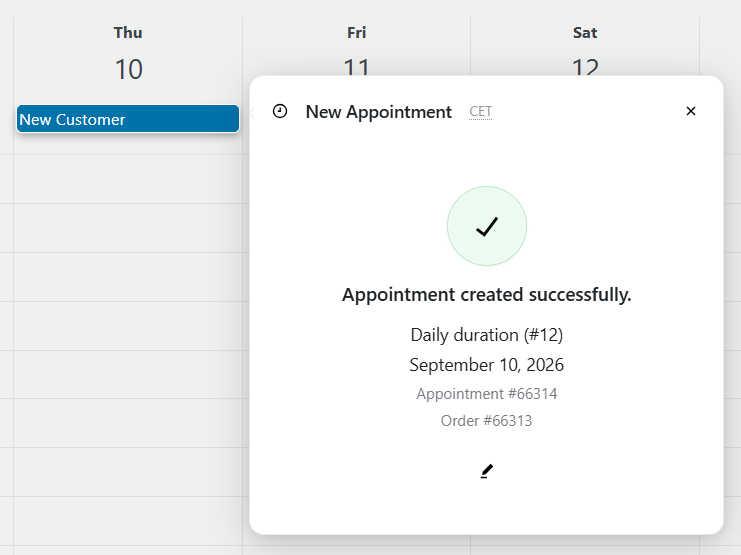
After a successful create, a confirmation step shows product, schedule, and IDs, with a button to load the new appointment into edit mode in the panel.
Create flow (step by step)
1. Product
- Instant select from preloaded appointment products (duplicate titles append SKU or
#id) - Switch product to change selection (no clear × on create/edit)
- Quantity field when the product allows more than one seat per slot
- Staff and add-ons fields appear or hide from preload as soon as you pick a product
2. Customer
- Search existing WooCommerce customers or enter guest details
- Create an account for this customer when appropriate
- Create as a Customer — header toggle to book as the logged-in staff member (see Screen Options for legacy behavior)
- Attendance stays at Expected on create (hidden); set it after the appointment exists
3. Date & time
- Outlined Start / End fields for timed products; date or month range for day/month products
- Availability uses a fixed trailing status icon (no layout jump from helper text)
- Required date/time validation shows below the fields with an error outline until valid
- Calendar slot or date-only pick prefills schedule; date-only picks auto-select the first time on that day
- Add New without a calendar prefill leaves date/time empty until you choose them (no automatic first-available fill)
4. Pick from a calendar
Use Pick from a calendar to open the browse mini-calendar and slot chips instead of typing a time manually. Closed, it is a compact text trigger; open, it expands as an outlined card.
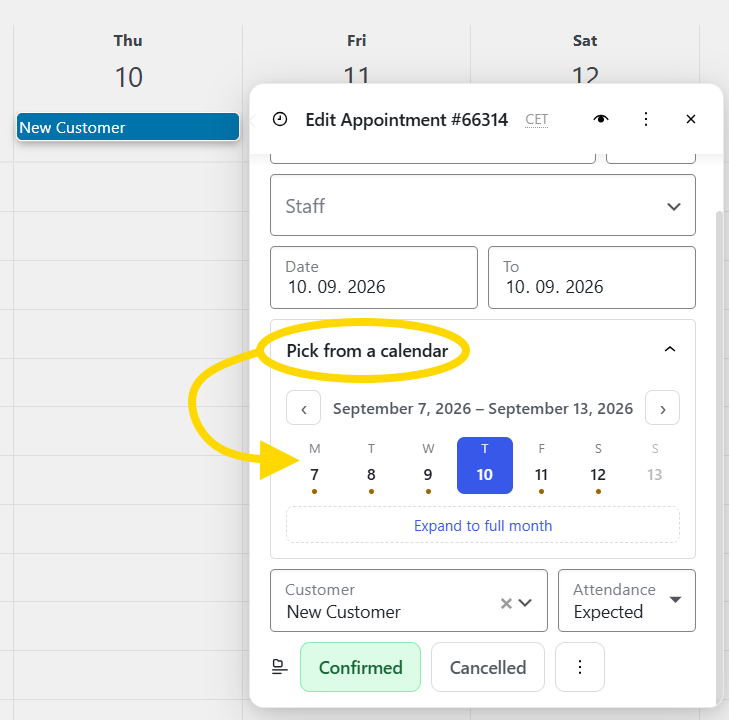
Browse behavior:
- Month strip or expanded month view
- Slot chips in a grid; remaining capacity shown (e.g. 1 available)
- Day/month products: pick start date or month; availability dots on the mini-calendar
- Browse does not auto-open when a slot is unavailable; open it yourself, or focus the date/time fields
- Loading keeps the calendar header and shows skeleton cells (not a faded whole calendar)
5. Staff
- Assign staff or leave unassigned when the product allows it
- On create, logged-in staff with product assignment are auto-selected when applicable
- Staff-filtered availability respects product rules
6. Order & billing
- Create a new order or attach to an existing order
- Billing fields live in an outlined Edit / collapse card
- Billing country, state, payment method, transaction ID
- WooCommerce Deposits: pay deposit vs pay in full when the product requires it
- WooCommerce Payments multi-currency: currency selector on create when configured
7. Add-ons
- Product add-ons load after product (and currency) selection (outlined Edit card, quiet label / value rows)
- File upload add-ons supported on create
8. Price
- Footer shows calculated price; optional inline override on create
- Tax display matches catalog settings (incl./excl.)
- Line Total appears in pricing meta only when it differs from order total (multi-line orders)
Click Create when availability passes. Errors stay in the panel until resolved.
View & edit details
| Section | View | Edit |
|---|---|---|
| Status | Filter chips; cancel confirms | Same |
| Attendance | Muted text beside customer name | Select beside Customer |
| Product / staff / duration | Display (duration on the When row) | Editable where allowed |
| Schedule | Timezone abbreviation in header | Browse + manual fields |
| Customer | Name, email, links | Search / guest fields |
| Order | Link to WooCommerce order | Attach or create |
| Notes | Read + add note | Read + add note |
| Add-ons | Read-only list | Editable |
Timezones
The header always shows the active timezone abbreviation. When staff or customer timezone differs from the site, labels and slot times follow Timezone rules for admin display.
Overnight & multi-day
- Timed appointments past midnight show a +Nd indicator on the end time
- All-day / multi-day edits support end-date changes
- Addon duration extends the computed end time (same as storefront)
Recurring series (5.4+)
When viewing or editing an appointment that belongs to a package/series, the panel can show a series badge and sessions list. Scoped actions (this / following / all) apply to status changes and related operations. Pay-first packages may show Package balance actions on the order.
Full series setup (prepaid, pay-first, balance orders, My Account): Recurring appointment packages.
Screen Options
On Appointments → Calendar, open Screen Options (top right):
| Option | Purpose |
|---|---|
| Use legacy calendar temporarily | Switches back to the pre-5.1 calendar UI |
| Use legacy Create as a customer temporarily | Restores older “create as customer” behavior on the panel header |
These are per-user preferences stored in your profile meta.
Legacy modal & Add Appointment page
If the panel is disabled via filter, or you rely on older workflows:
- The Backbone appointment modal may still be used on some screens
- Appointments → Add Appointment remains reachable by direct URL but is hidden from the menu
Prefer the panel for calendar work. Use Edit in WordPress only when you need the full classic edit screen (meta boxes, revisions, etc.).
Developers
- Panel config filter:
wc_appointments_admin_panel_config - Redirect after create:
woocommerce_appointments_add_appointment_page_redirect(includes$contextfor calendar vs legacy) - JavaScript hooks for calendar UI: Developers → full hook list after developer login
Related
- Calendar
- Managing appointments
- Recurring packages — series badge and scoped actions