Staff Portal
The Staff Portal (5.2.0+) is a focused WordPress admin experience for Shop staff — appointment dashboard, streamlined menu, and permission-based access instead of the full wp-admin.
How it works
Users with manage_appointments but not manage_others_appointments get the portal automatically. Administrators and Shop Managers always see the full admin.
What you need
- Staff users with the Shop staff role — Staff
- Staff permissions configured (global or per user)
What staff can do (depends on permissions)
- ✅ View dashboard, calendar, and their appointments
- ✅ Manage own availability and Google Calendar (when allowed)
- ✅ Create appointments, view customers, or see earnings — only if those permissions are enabled
Explore: Dashboard → Menu & admin bar → Profile → Permissions
Dashboard
On Home, default WordPress and WooCommerce widgets are replaced with appointment widgets in a 3-column layout.
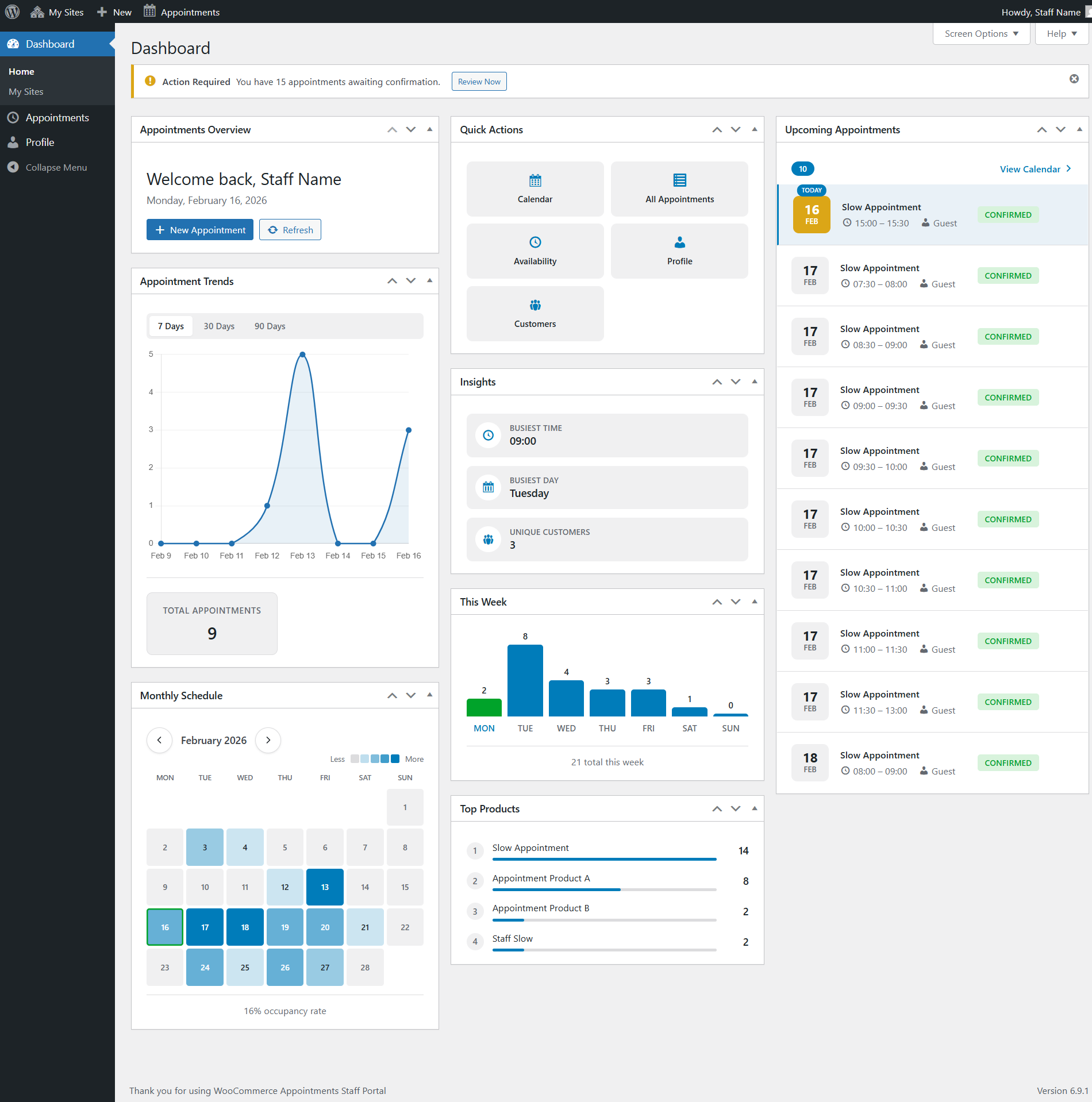
Appointments overview
Summary card:
- Today's appointments
- This week
- Pending confirmation (linked)
- Completed this month
- Revenue this month (when
view_own_earningsis on) - Occupancy rate
Appointment trends
Chart.js line chart — toggle 7 / 30 / 90 days. Revenue axis visible when earnings permission is granted.
Upcoming appointments
Next appointments with date, Today / Soon badges, product, time, customer, status, and View Details link. Empty state includes Create Appointment when create_appointments is enabled.
Insights
Peak hour, peak day, and recent customers.
This week and monthly heatmap
Day-by-day counts for the current week; color-coded monthly heatmap with month navigation.
Top products and quick actions
Most-booked products for this staff member. Shortcut buttons respect permissions:
| Action | Permission |
|---|---|
| Calendar | view_calendar |
| All Appointments | view_appointments_list |
| Availability | manage_own_availability |
| Profile | Always visible |
| Customers | view_customers |
| Export | export_appointments |
Streamlined admin menu
Visible items:
- Dashboard — appointment widgets
- Appointments — list, calendar, sub-pages
- Profile — details, timezone, availability, Google Calendar
Conditional items:
| Menu item | Permission |
|---|---|
| Products | manage_products |
| Orders | view_orders |
| Customers (under Appointments) | view_customers |
Direct URL access to forbidden pages redirects to the appointments list.
Admin bar
Standard items (New Post, Comments, etc.) are hidden. Appointments menu adds Dashboard, Calendar, All Appointments, and Customers (each permission-gated).
Pending badge on Calendar when appointments await confirmation.
Dashboard notices
Pending-confirmation appointments show an Action Required notice with a Review Now link to the filtered list.
Customers page
Appointments → Customers (requires view_customers):
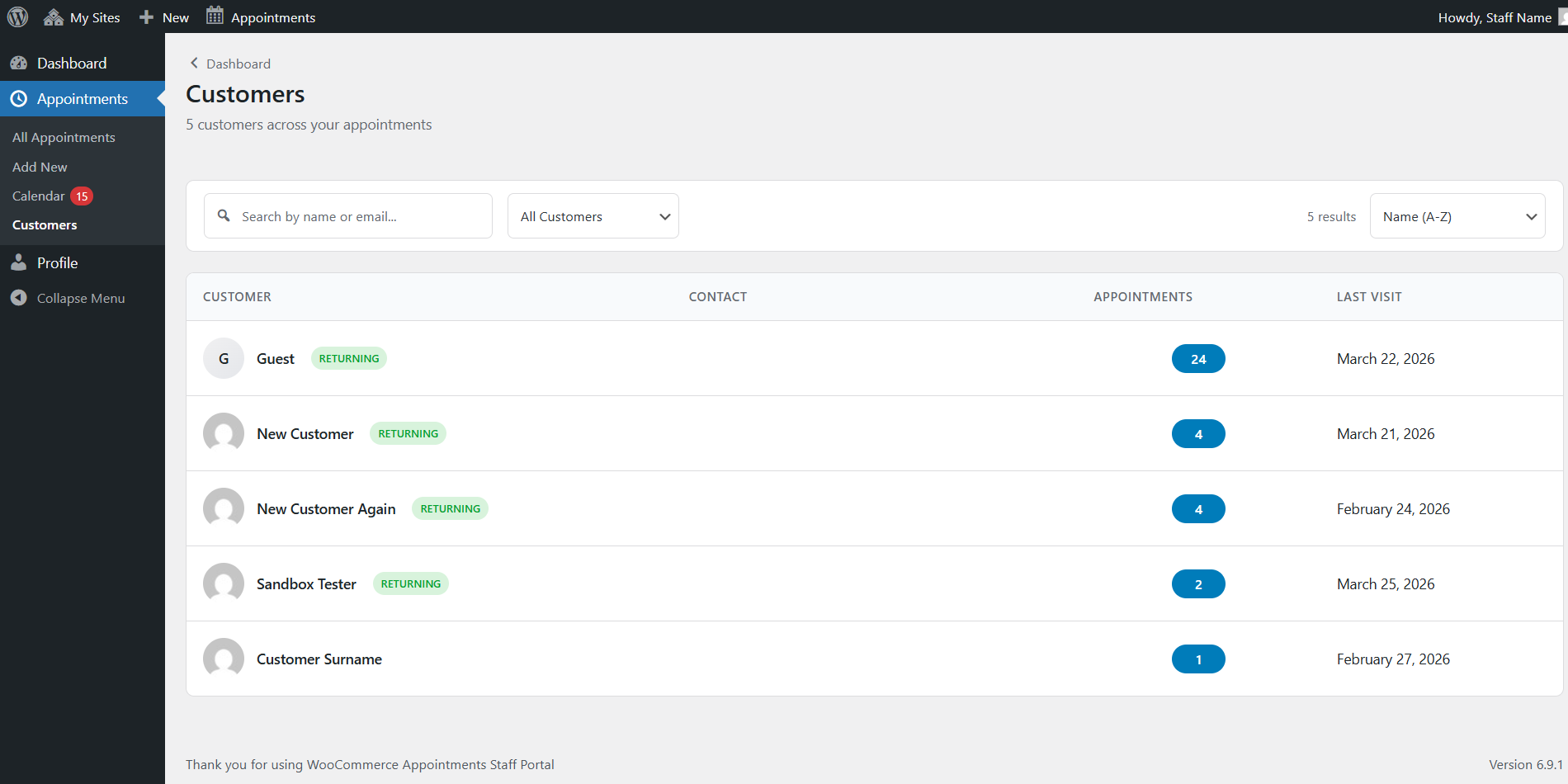
- Name, email, phone, avatar
- Appointment count and last appointment date
| Feature | Permission |
|---|---|
| Own customers only | view_customers |
| All customers | view_all_customers |
| Appointment history | view_customer_history |
| Contact (email link) | contact_customers |
Staff profile
Profile (top-level menu):
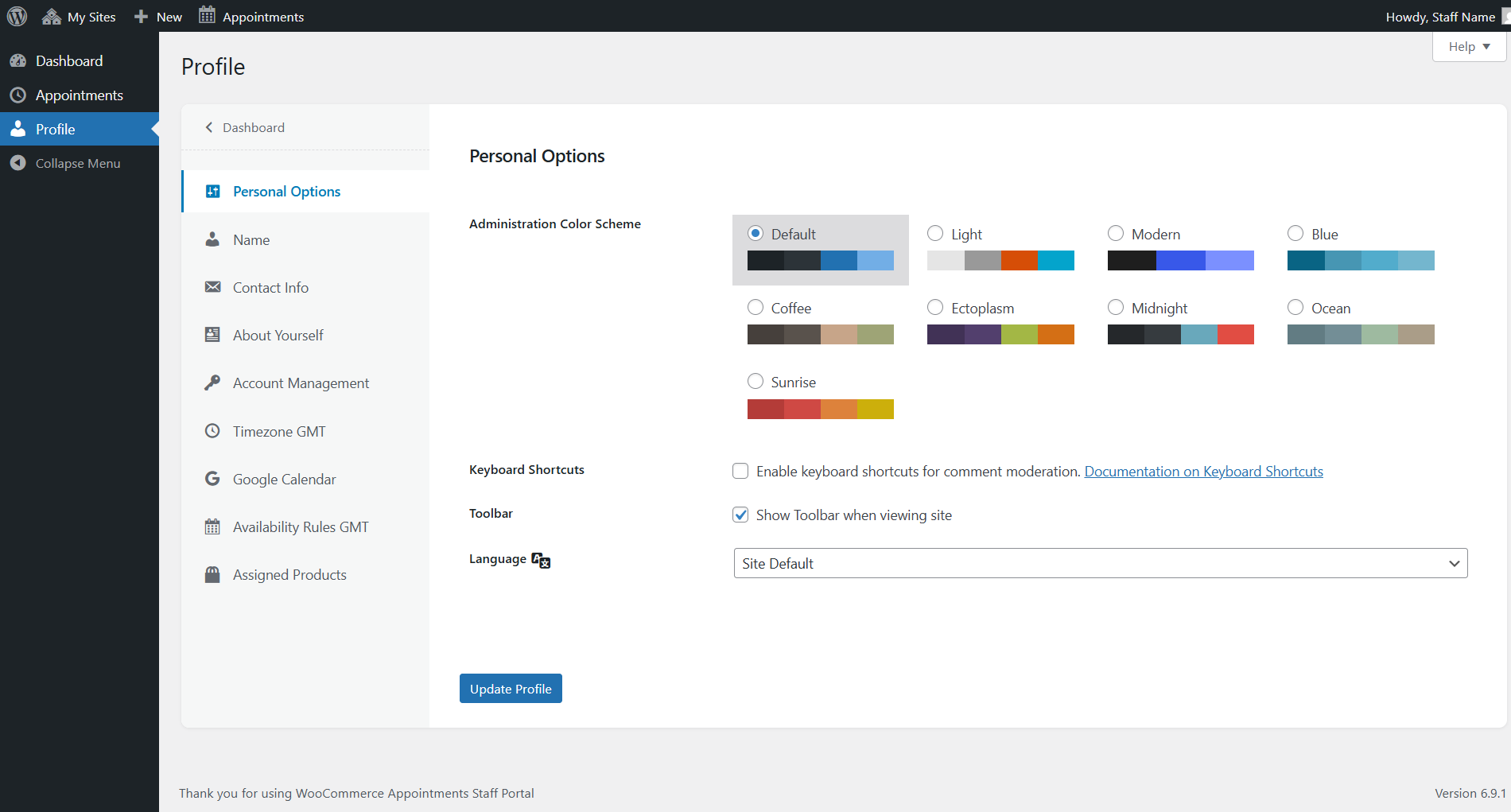
Timezone
Pick a working timezone or Default (site). Use my current timezone when browser detection differs. See Timezones.
Availability rules
- My Rules — add, edit, delete, reorder
- Synced Rules — Google Calendar imports (read-only; count badge)
When staff timezone ≠ site timezone, a note shows which zone rules display in. Saves convert to site timezone automatically.
Google Calendar sync
Requires store Client ID and Client Secret first — Google Calendar — Part C.
| Control | Purpose |
|---|---|
| Continue with Google | Authorize staff Google account |
| Calendar | Target calendar for push / busy import |
| Sync Mode | One-way or two-way |
| Connected / Disconnect | Status; local disconnect only |
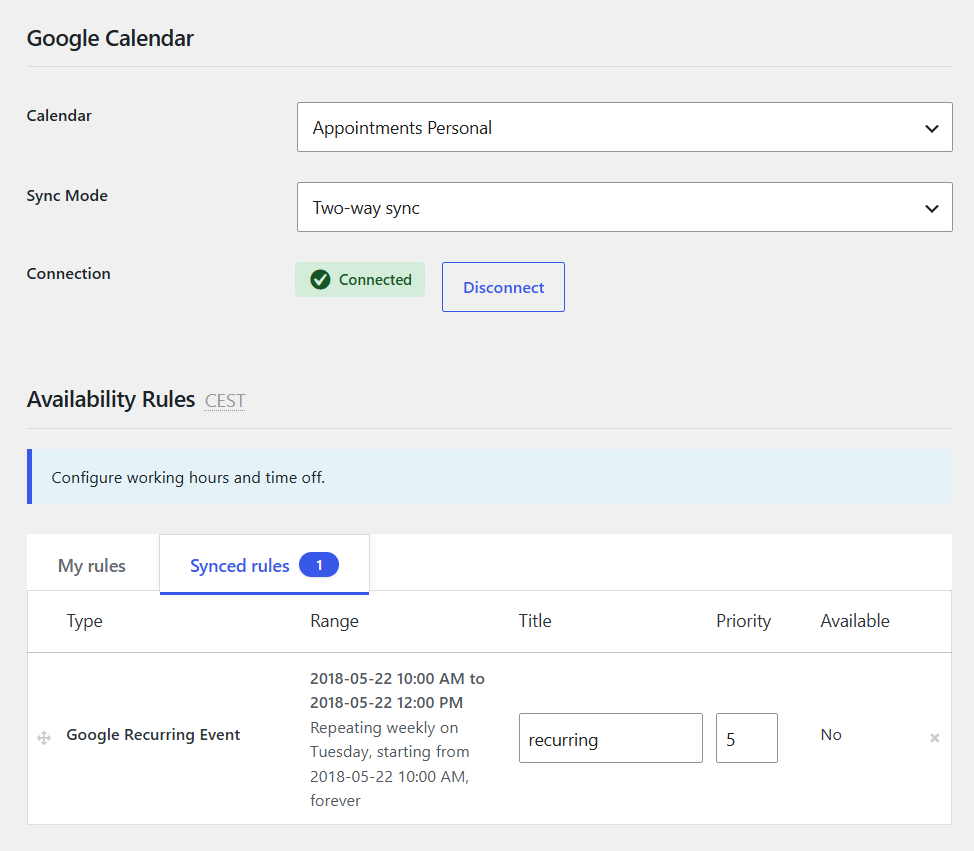
Edit synced busy events in Google Calendar, then re-sync or wait for automatic sync.
Permission presets
| Preset | Dashboard | Calendar | Create | Customers | Products | Earnings |
|---|---|---|---|---|---|---|
| Minimal | ✅ | ✅ | ❌ | ❌ | ❌ | ❌ |
| Standard | ✅ | ✅ | ✅ | ✅ | ❌ | ❌ |
| Advanced | ✅ | ✅ | ✅ | ✅ | ✅ | ✅ |
Full matrix: Roles & capabilities.
Related
- Staff — assign staff to products
- Roles & capabilities — permission defaults and overrides
- Google Calendar sync — staff calendar connection
- Admin appointment panel — create and edit from calendar